
What You'll Need
- Fingerprint or Face ID enrolled on your device (in your phone's system settings)
- To be signed in to CrewBox at least once with your password
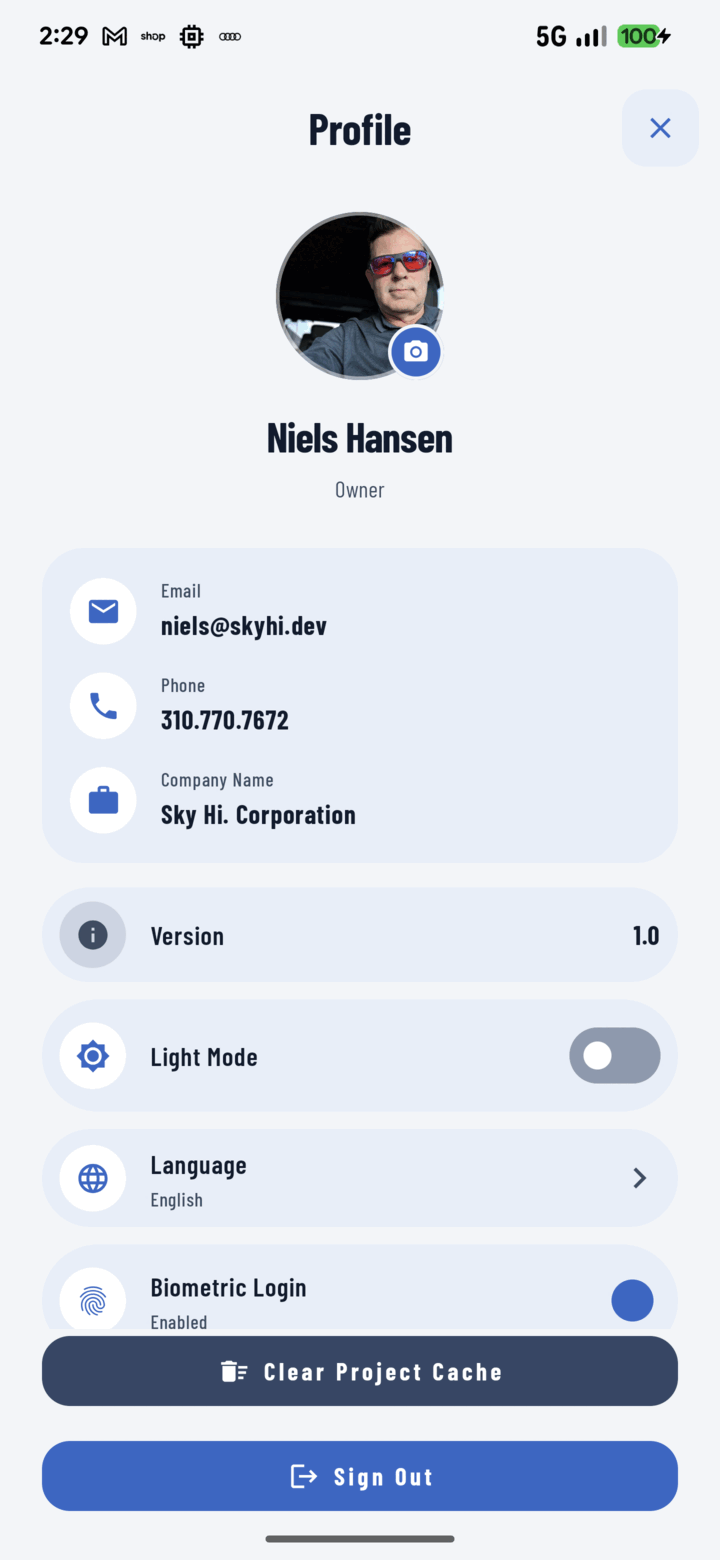
Turn on Biometric Login in Profile to unlock CrewBox with your fingerprint or face.
Steps
- Sign in to CrewBox.
- Tap your avatar in the top header to open your Profile.
- Turn on the Biometric login switch. (The switch only appears if your device supports and has enrolled biometrics.)
- Confirm with your fingerprint or face when prompted.
- Next time you sign in, tap the fingerprint icon in the password field and authenticate — no typing.
How It's Protected
Your credentials are stored only in your device's secure storage (iOS Keychain / Android encrypted storage) and can only be released by the device's biometric hardware. Turning the switch off removes them immediately.
Troubleshooting
- No biometric switch on Profile? Your device has no fingerprints/faces enrolled — add one in your phone's settings first.
- No fingerprint icon at login? Biometric login is enabled per account per device; sign in once with your password, then enable it on Profile.
Related
- Sign in with Google
- FAQ: Privacy & Data