
Steps
1. Watch the notification bell
The bell icon in the sidebar header shows an unread badge (capped at 10+). It checks for new notifications every 60 seconds and whenever you return to the browser tab, so the count stays current without a refresh.
2. Open the Notifications page
Click the bell to open the Notifications page. You can also get there from the user menu in the sidebar footer. The page header shows a pill with your total unread count.
3. Switch tabs to focus the feed
Use the tabs across the top of the feed:
- All — everything in one stream.
- Assignment — tasks assigned to you or taken off you, and project assignments.
- Tasks — activity on your tasks.
- Mentions — comments that @-mentioned you.
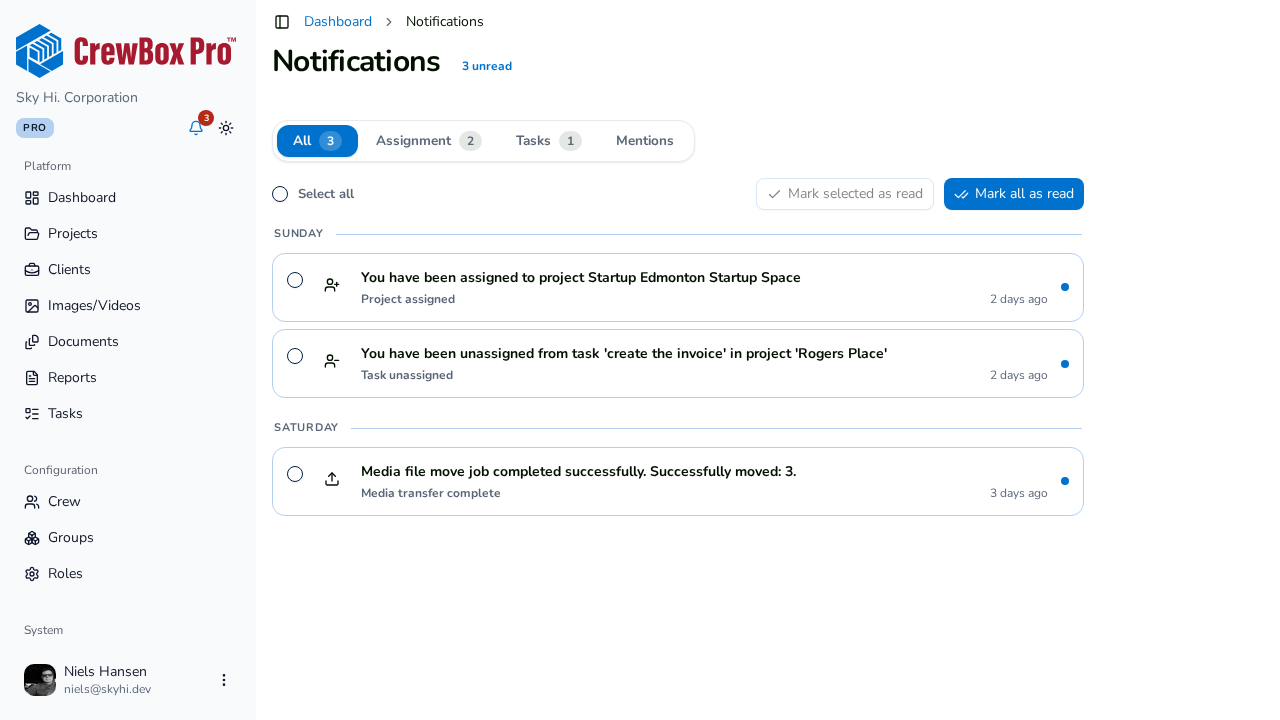
Each non-mentions tab shows its own unread count chip. Tabs are lenses, not buckets — a task assignment appears in both Assignment and Tasks. On wide screens (roughly 1400px and up), Mentions moves out of the tabs into a dedicated side panel next to the main feed.
4. Scan the day groups
Notifications are grouped by day: Today, Yesterday, weekday names for the past week, then full dates. Within each row you'll see a type-and-action icon, the notification text (bold until read), an event label with time-ago, and a photo thumbnail for media notifications. Unread rows carry a dot and a tinted background.
5. Open a notification
Hover a row and click Open (or click the row). Opening a notification marks it as read and deep-links you to the right place — a mention on a photo opens the viewer with its comments panel, a document notification opens the document viewer, task notifications open the project's task board, and media transfers open the destination project. If a target can't be resolved, you land on the relevant list page instead of a dead end.
6. Clear the backlog
Use the action bar to Mark selected as read or Mark all as read — see the dedicated guide below for the full options.