
Steps
1. Open the Notifications page
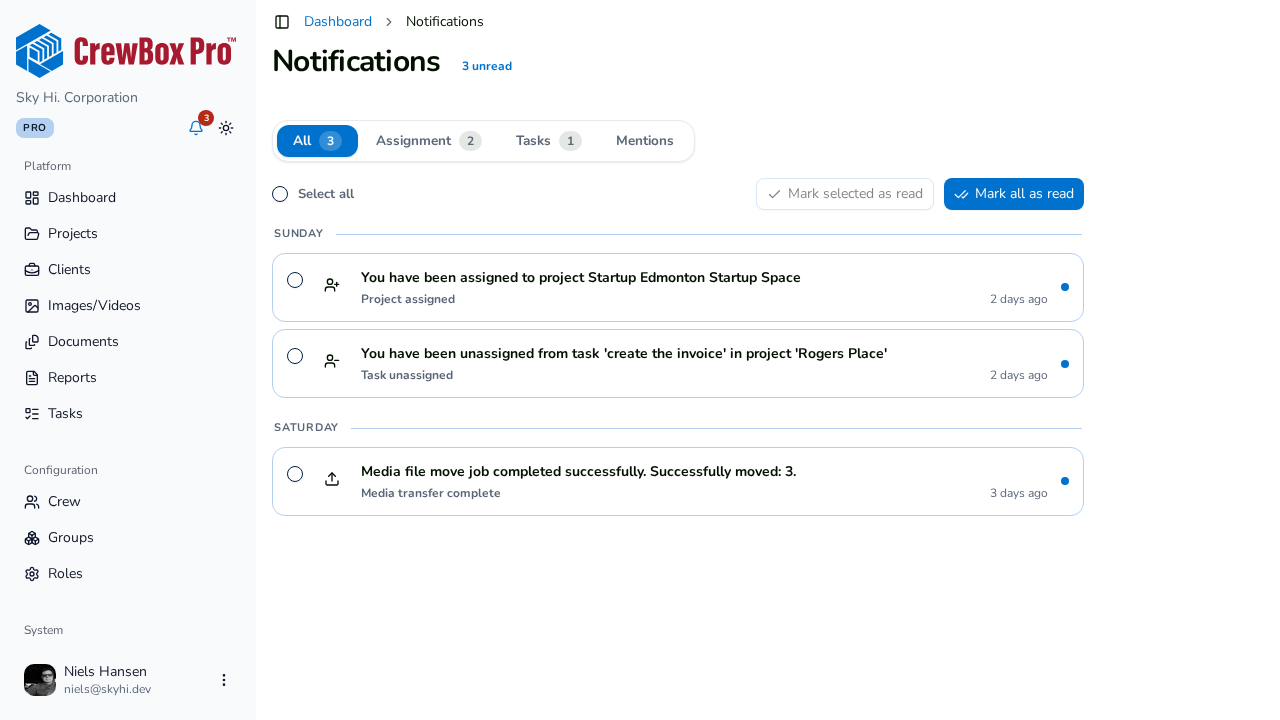
Click the bell in the sidebar header. Unread notifications appear in bold with an unread dot and a tinted background, and the header shows your total unread count.
2. Mark a single notification as read
Hover over any unread row and click Mark as read in the hover toolbar. Opening a notification (clicking Open or the row itself) also marks it as read while taking you to its source.
3. Mark a selection as read
Each row has a checkbox:
- Check the notifications you want to clear — or use the select all checkbox in the action bar.
- The action bar shows how many are selected (for example, "3 selected").
- Click Mark selected as read.
4. Mark everything as read
Click Mark all as read in the action bar to clear every visible unread notification in one go. The button appears only when there are unread items.
5. Confirm it worked
A "Marked as read" toast confirms the update, the rows lose their bold text and unread dot, and the bell badge and tab count chips drop accordingly. When the feed is fully cleared you'll see "No notifications — you're all caught up."