Steps
1. Learn the notification types
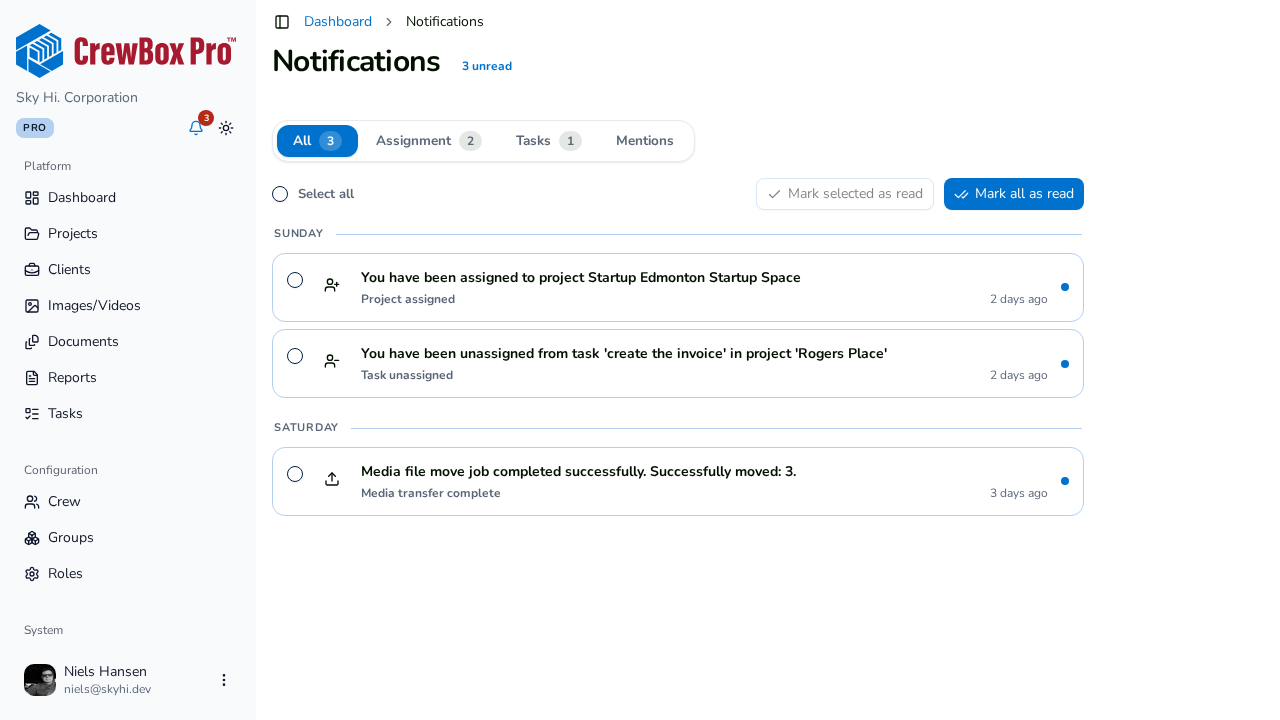
CrewBox sends these notification types:
| Type | What triggers it | Where it lands |
|---|---|---|
| Task assigned | A task is assigned to you | Assignment and Tasks |
| Task unassigned | A task is taken off you | Assignment and Tasks |
| Project assignment | You are assigned to a project | Assignment |
| @-mention on a project | Someone mentions you in a project comment | Mentions |
| @-mention on a photo | Someone mentions you in a photo comment | Mentions |
| @-mention on a document | Someone mentions you in a document comment | Mentions |
| @-mention on a task | Someone mentions you in a task comment | Mentions |
| @-mention on a blueprint | Someone mentions you in a blueprint comment | Mentions |
| Media transfer complete | A media transfer finishes (with success/failure counts) | All |
Everything also appears in the All tab — tabs are lenses over one feed, which is why a task assignment shows up in both Assignment and Tasks.
2. Read the row icons
Each row's icon tells you the action at a glance: a person-plus icon for assignments, a person-minus icon for unassignments, an upload icon for media transfers, and comment icons (varying by entity) for mentions. Media notifications also include a small photo thumbnail.
3. Know where clicking takes you
Opening a notification deep-links to its source: photo mentions open the media viewer with the comments panel, document mentions open the document viewer, task notifications open the project's task board, blueprint mentions open the project's blueprints, and media transfers open the destination project. Unresolvable targets fall back to the relevant list page.
Related