
Steps
1. Open the Notifications page
Click the bell in the sidebar header to open Notifications.
2. Find the Mentions view
Where mentions live depends on your screen:
- Standard screens: click the Mentions tab in the notifications feed.
- Wide screens (roughly 1400px and up): Mentions becomes a dedicated side panel next to the main feed, marked with an @ icon — the tab disappears because the panel is always visible.
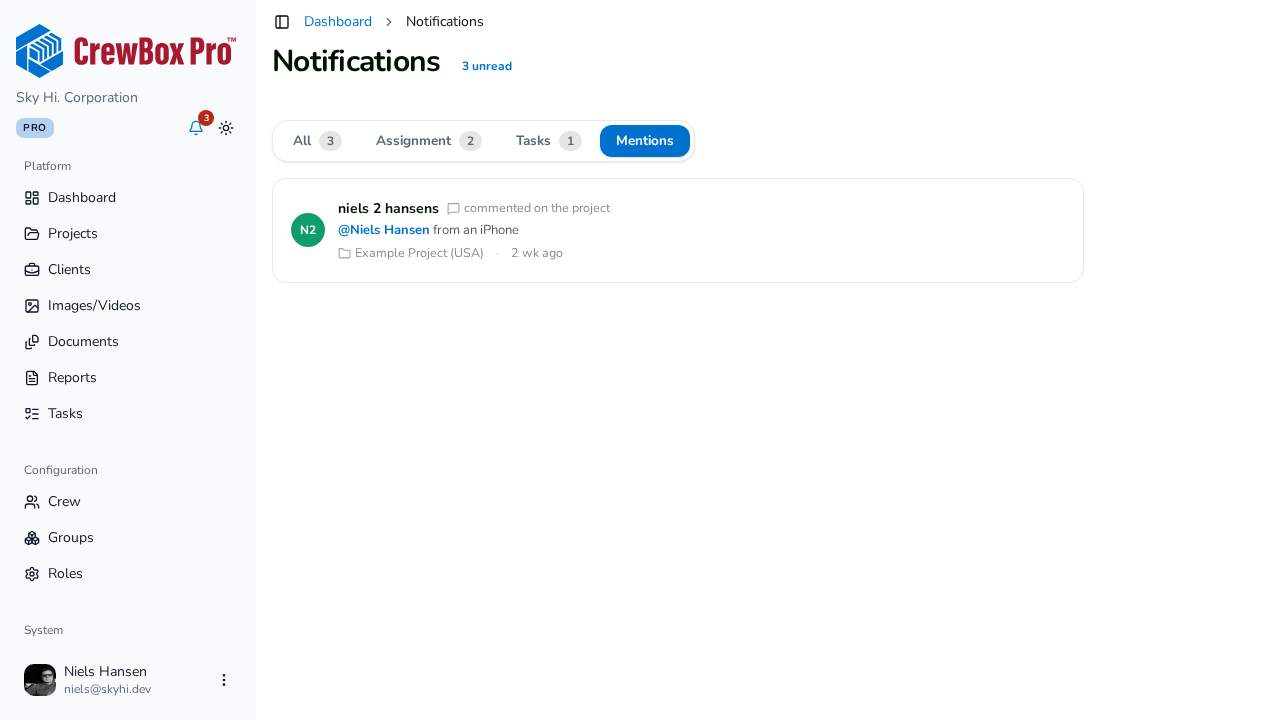
3. Read the mentions list
The list shows every comment that @-mentioned you, loaded in pages as you go. Each entry shows the author's avatar, the comment text with @-mentions rendered as names, what the comment was on (photo, document, task, blueprint, or project), the project, and how long ago it happened.
4. Jump to the conversation
Click a mention to deep-link into its source — a photo mention opens the media viewer with the comments panel open, a document mention opens the document viewer, a task mention opens the project's task board, and a blueprint mention opens the project's blueprints.
5. Check mentions of a teammate
The same list appears on each crew member's profile page under their Mentions tab, showing comments that @-mentioned that person. If nobody has mentioned them yet, you'll see "No one has @-mentioned this crew member yet."