Steps
1. Open a comment box
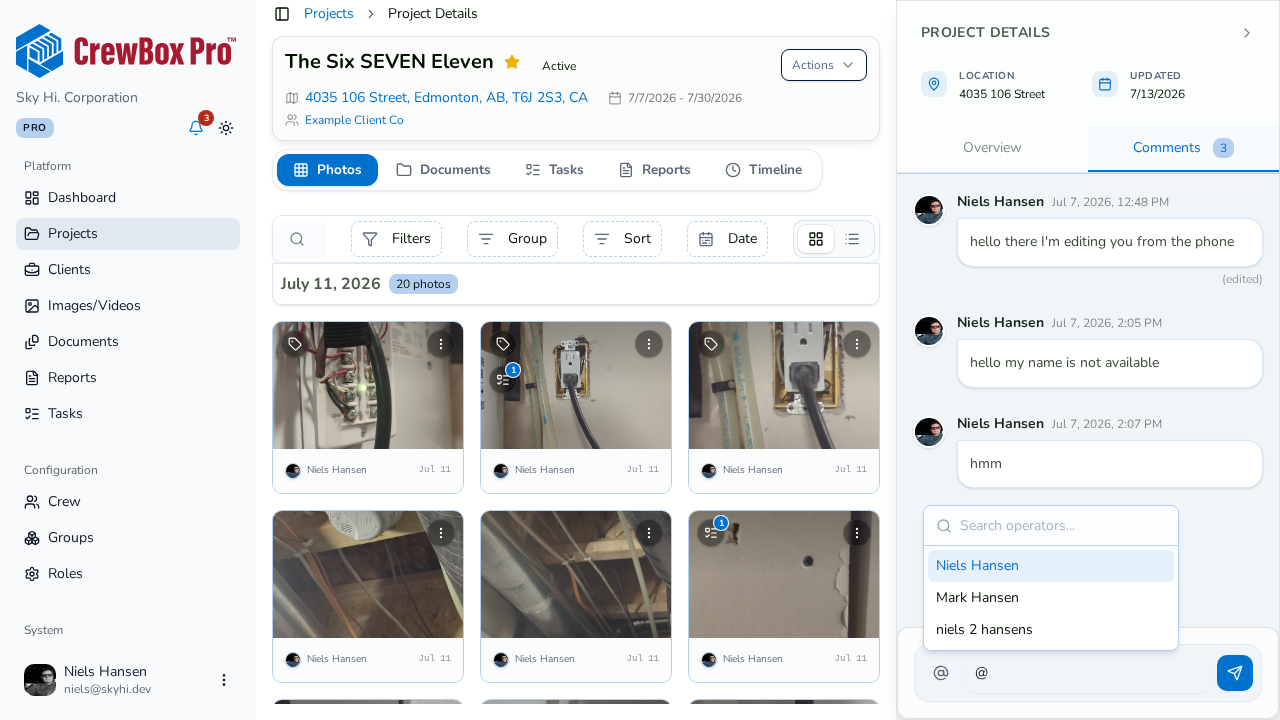
Mentions work everywhere comments do: project comments, photo and video comments, document comments, plan marker comments, and task comments.
2. Type @
In the comment box, type @. An autocomplete picker opens listing your crew members. You can also click the @ button next to the comment box to open the same picker.
3. Pick the teammate
Keep typing to narrow the list, then select the crew member you want. Their name is inserted into your comment and renders as a highlighted name — not plain text — so it's easy to spot who's being addressed.
4. Send the comment
Click Send. The mentioned person receives a notification.
What the mentioned person sees
The notification deep-links straight into the conversation — clicking it opens the exact surface (project, photo, document, marker, or task) where the mention happened, scrolled to the thread. No hunting through projects to find where they were tagged.
Tips
- You can mention more than one person in a single comment — just type
@again. - Mentions survive edits: if you edit your comment (press Enter to save, Escape to cancel), highlighted names stay intact.
- Mentions are the fastest way to get eyes on a specific photo: comment on the photo itself and mention the person who needs to see it.