
Open a document's comments
- Open the document in the full-screen viewer.
- Click the Comments tab in the sidebar. On very wide screens, details and comments show side-by-side.
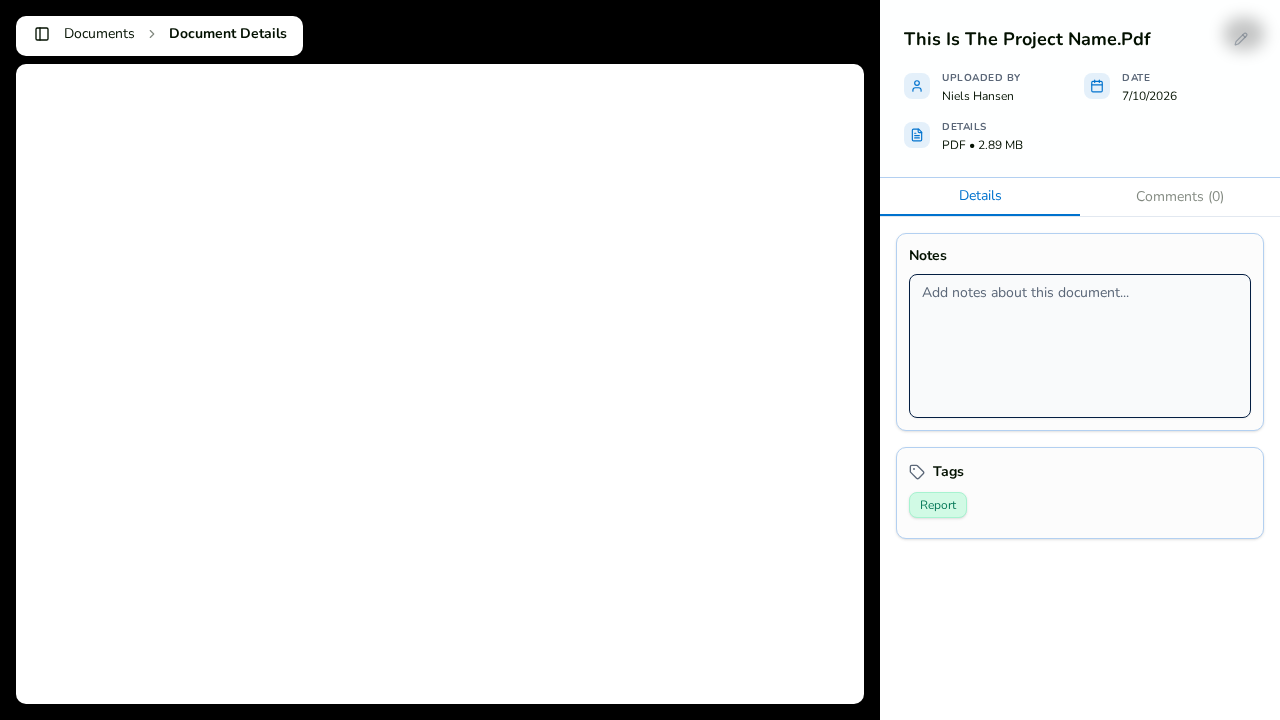
You can also jump straight there from the Documents tab: clicking the comment count on a document card opens the viewer with the comments panel ready.
Post a comment
- Type your message in the comment box.
- To pull in a teammate, type @ — an autocomplete of teammates opens. Pick a name and it renders as a highlighted mention.
- Send the comment. Mentioned teammates get a notification that deep-links them straight into this conversation.
The thread auto-scrolls to the newest message.
Edit or delete a comment
- Edit your own comments inline: press Enter to save or Escape to cancel. Edited comments carry an "(edited)" marker. Workspace owners can also edit.
- Delete is gated to the owner role and asks for confirmation before removing the comment.
Where document comments surface
Document comments appear in the dashboard's Recent Comments widget and in the Notifications feed — both deep-link back to the exact conversation.