
Add notes to a document
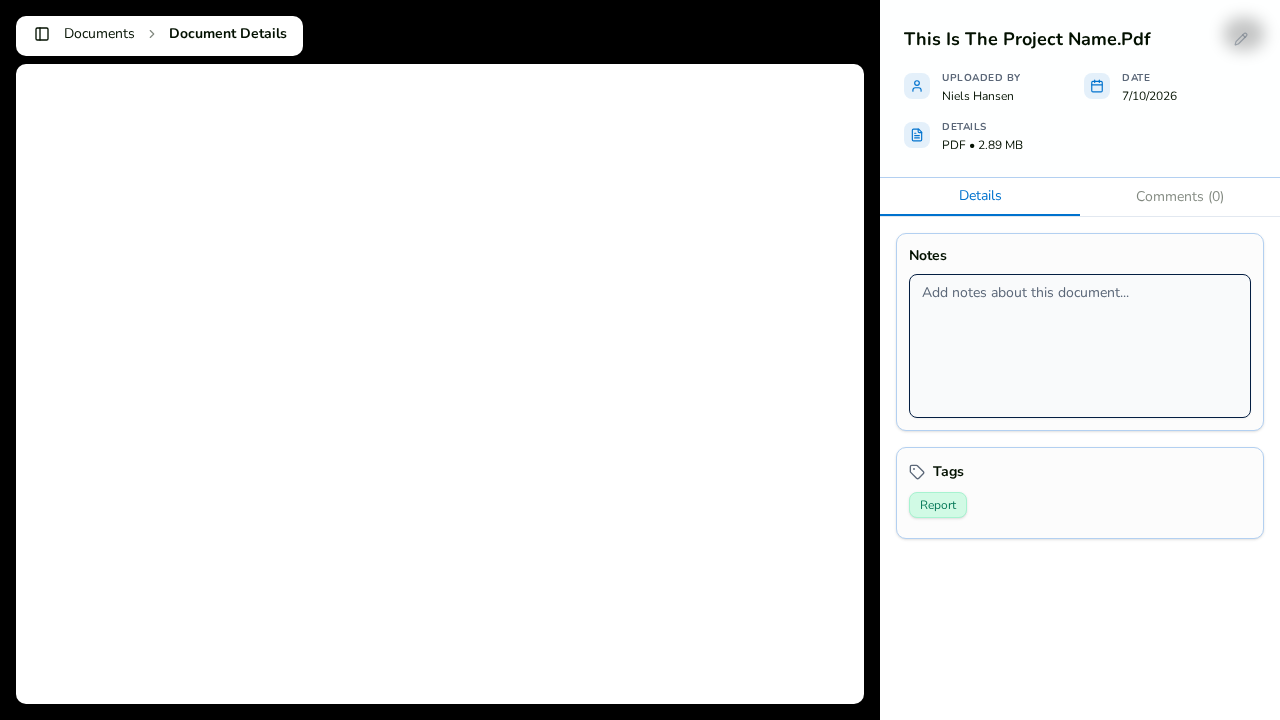
- Open the document in the full-screen viewer (click its card or choose View from its action menu).
- In the sidebar, click into the Notes field.
- Type your note — a summary, a revision reminder, whatever the crew needs to know.
- Click anywhere outside the field. Notes save on blur, so there is no separate save button to hunt for.
Add tags to a document
- In the same viewer sidebar, find the Tags section.
- Click to open the full tag manager.
- Apply existing tags or create new ones, then close the manager.
Tags show on the document card in the Documents tab, and they power the tag filter and Group by Tag views — so consistent tagging pays off every time someone searches.
Tag many documents at once
To tag in bulk, use Select mode in the Documents tab, select the documents, and click the Tag bulk action.