
Open the global Documents page
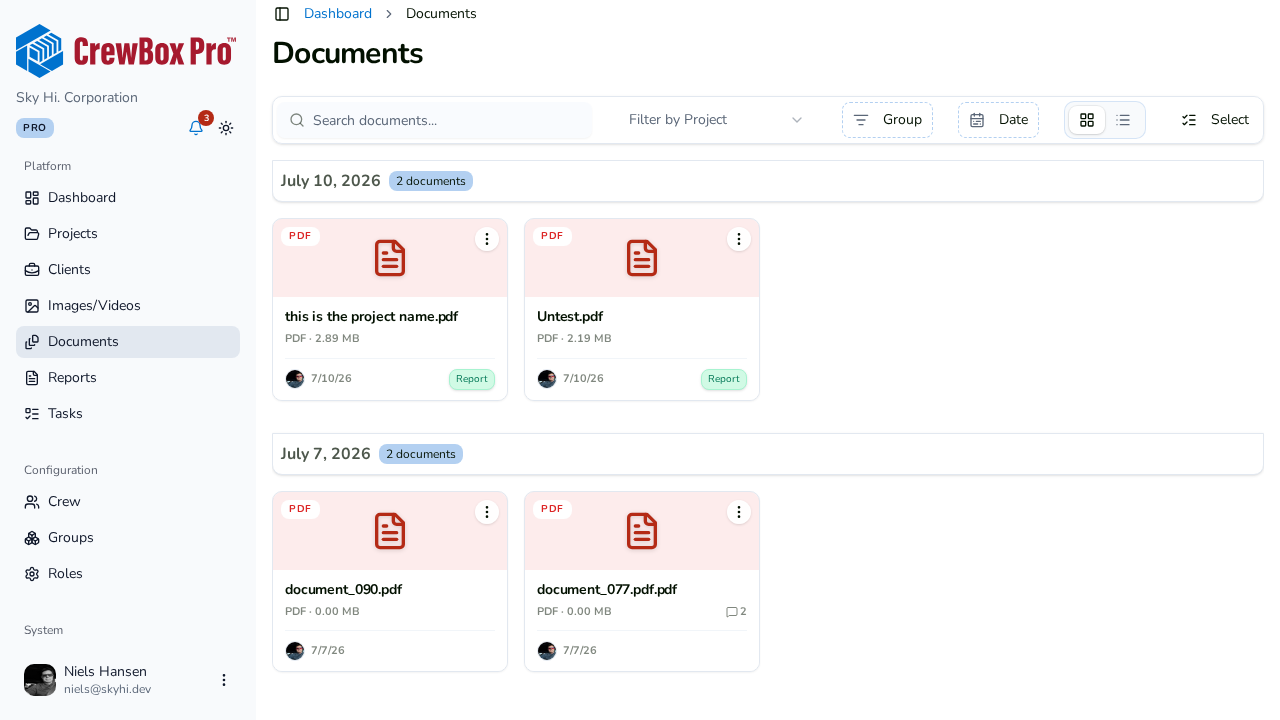
From the dashboard navigation, open Documents (/o/dashboard/documents). This is the company-wide file view spanning all projects.
Narrow the list
- Search — find files by what you're looking for.
- Project filter — limit the view to one or more projects.
- Grouping — organize by Day, Tag, or Uploader.
- Date range — restrict to a specific window.
- Grid/list toggle — switch layouts. The list view adds a project column, so you can see which job each file belongs to.
Keep scrolling
The page uses infinite scroll — more documents load automatically as you reach the bottom. No pagination buttons to click.
Act on documents from here
Every action from the project Documents view works on the global page too:
- View a document in the full-screen viewer.
- Download it.
- Rename it.
- Move it to another project.
- Create a task from it.
- Delete it (with confirmation).
Multi-select bulk actions are available here as well — see the multi-select guide for the full list.