
Upload documents
- Open your project and click the Documents tab.
- Click Upload Doc in the project sidebar's Quick Actions (or use the Upload First Document button if the project has no documents yet).
- Pick one or more files in the file picker. Supported formats include PDF, Word, Excel, PowerPoint, and text files.
- Each file gets its own success or failure toast, so you can tell exactly which uploads landed.
Uploaded documents appear as cards with a type-colored tile and a format badge (PDF, Word, Excel, PowerPoint, Image, Video, Text, Archive), plus file name, size, uploader, date, and tags.
Open the document viewer
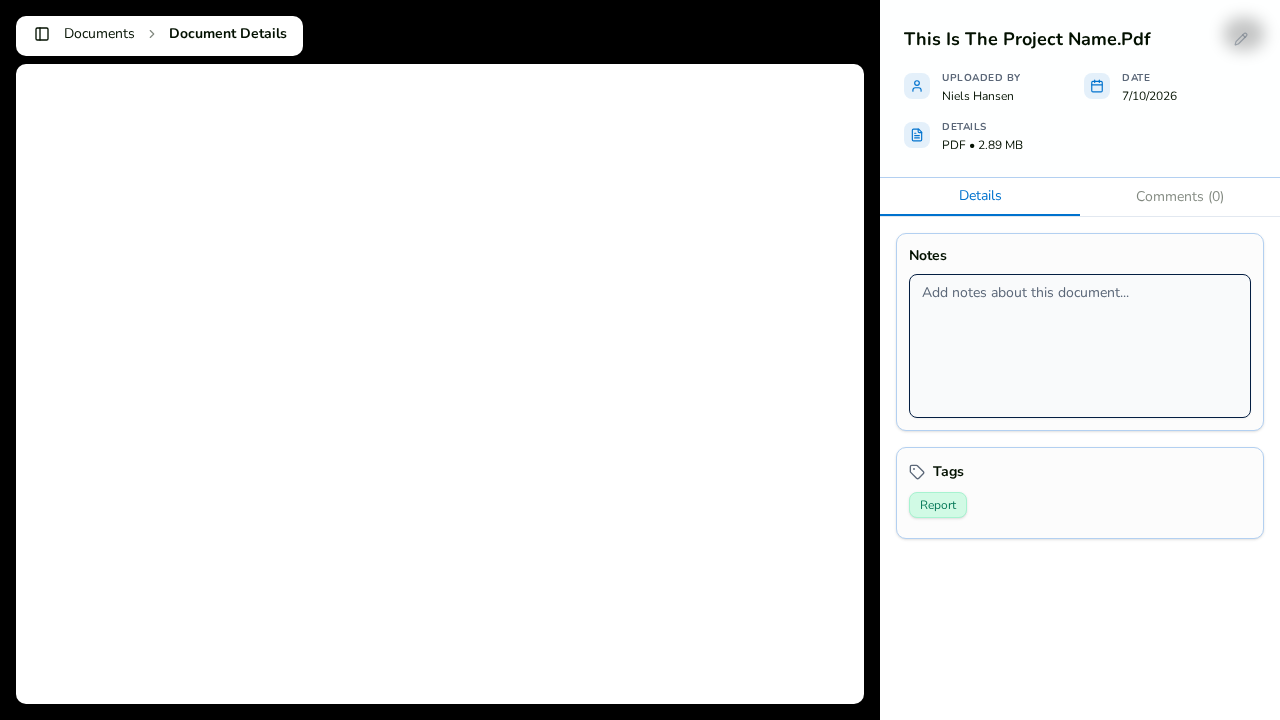
Click View in a document's action menu (or click the card) to open it in the full-screen viewer inside the console.
- Move between documents with the previous/next buttons or your keyboard's arrow keys.
- A collapsible sidebar shows details, notes, tags, linked tasks, and comments.
What each file type looks like
- PDF — renders natively in the browser.
- Word, Excel, PowerPoint, CSV — render through an embedded Office viewer.
- Images and videos — display natively.
- Text files — preview inline.
- Anything else — a graceful Download File fallback lets you save the file to your device.
Share a direct link
Document URLs are deep-linkable: …/documents/<documentId> opens the viewer directly. Notifications use these links to drop teammates straight into the right file.