
Move a single document
- Open the project's Documents tab and find the document.
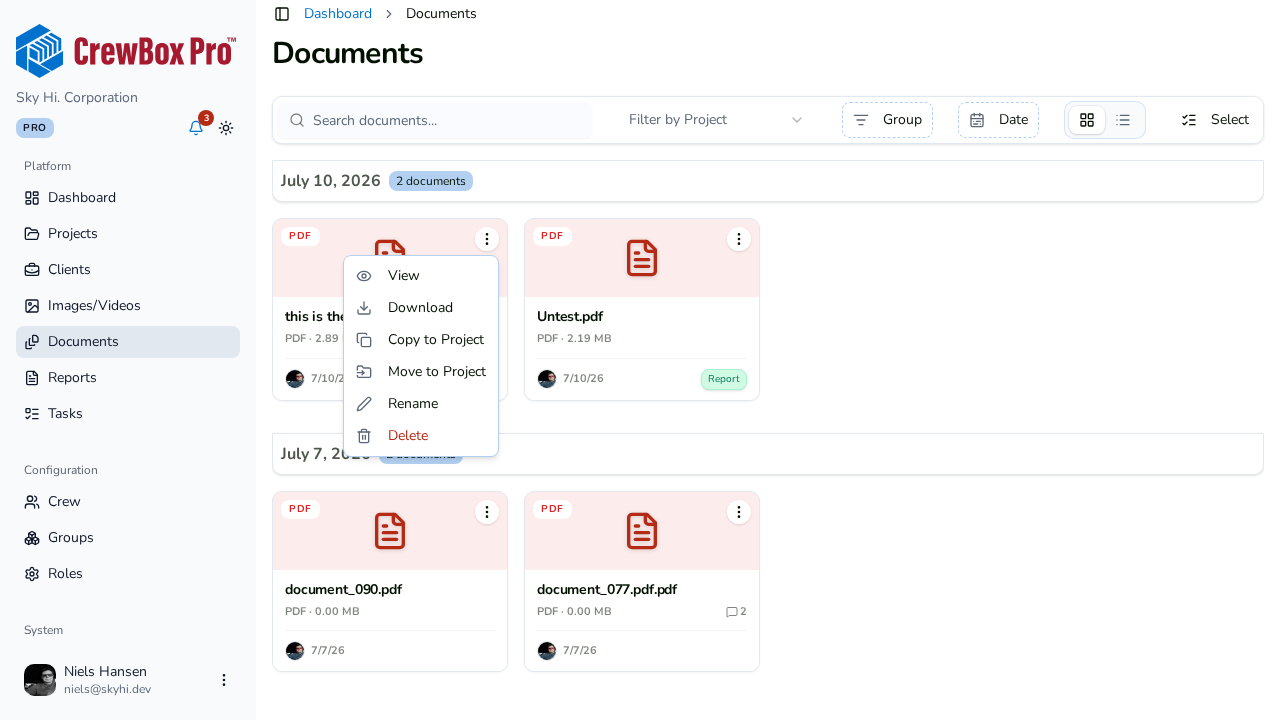
- Click the document's action menu.
- Click Move to Project.
- Pick the destination project and confirm.
The document leaves this project and appears in the destination project's Documents tab.
Move several documents at once
- Click Select in the toolbar to enter multi-select mode.
- Click the documents you want to move — or use a group header to select a whole group at once.
- Click Move to Project in the bulk action bar.
- Choose the destination project and confirm.
Moving from the global Documents page
The same Move to Project action works on the company-wide Documents page, so you can re-file documents across projects without opening each one.