
Steps
- Open the project → Documents tab.
- Long-press the document to enter selection mode; select any others that belong with it.
- Open the actions sheet and tap Move to Project.
- Pick the destination project from the searchable list.
- Confirm — the documents leave this project and appear in the destination's Documents tab, tags intact.
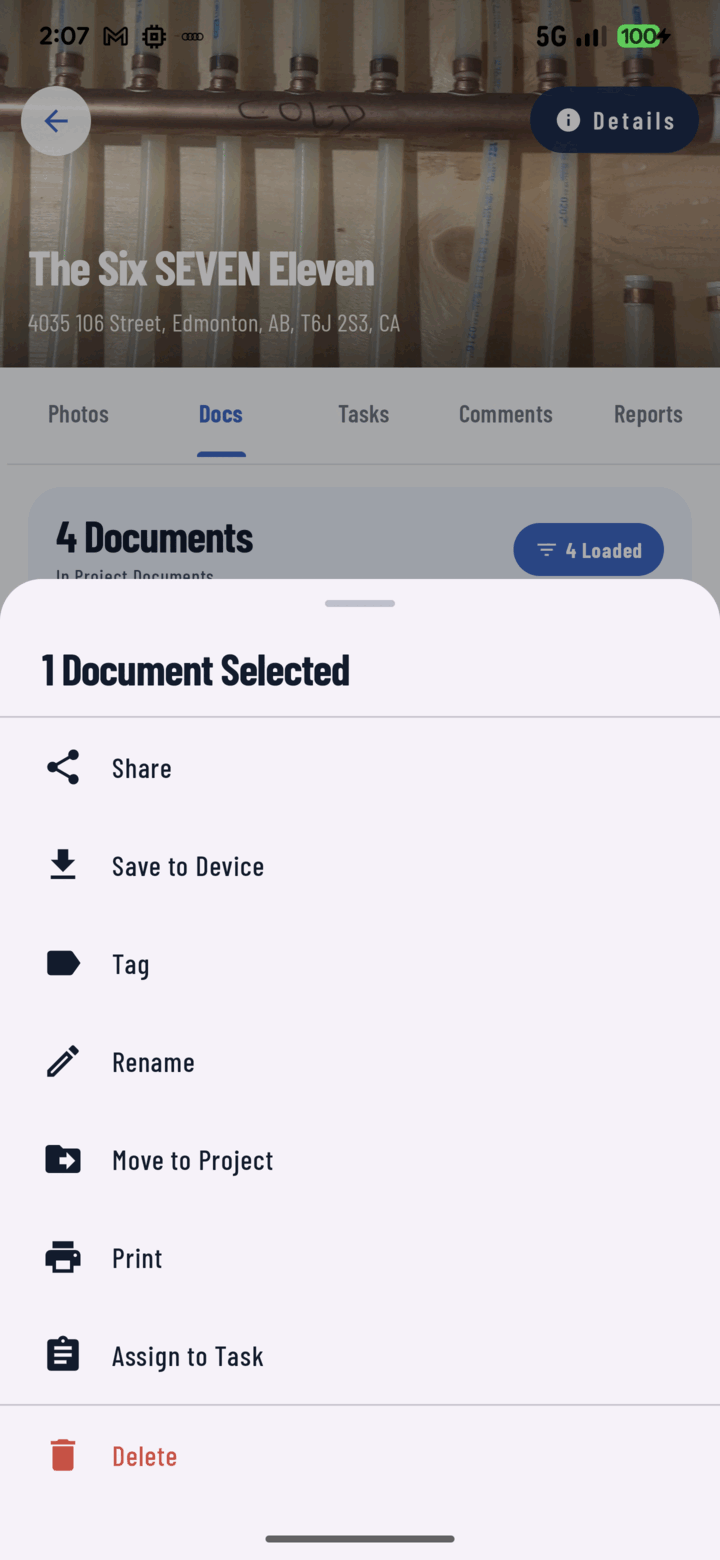
Long-press one or more documents, open Actions, and tap Move to Project to relocate them.
Notes
- Works in bulk — select a whole batch of misfiled documents and move them together.
- Photos move between projects the same way from the Photos tab (guide).
- If the file belongs in both projects, move isn't the tool — upload it to the second project as well (documents move, they don't link).