
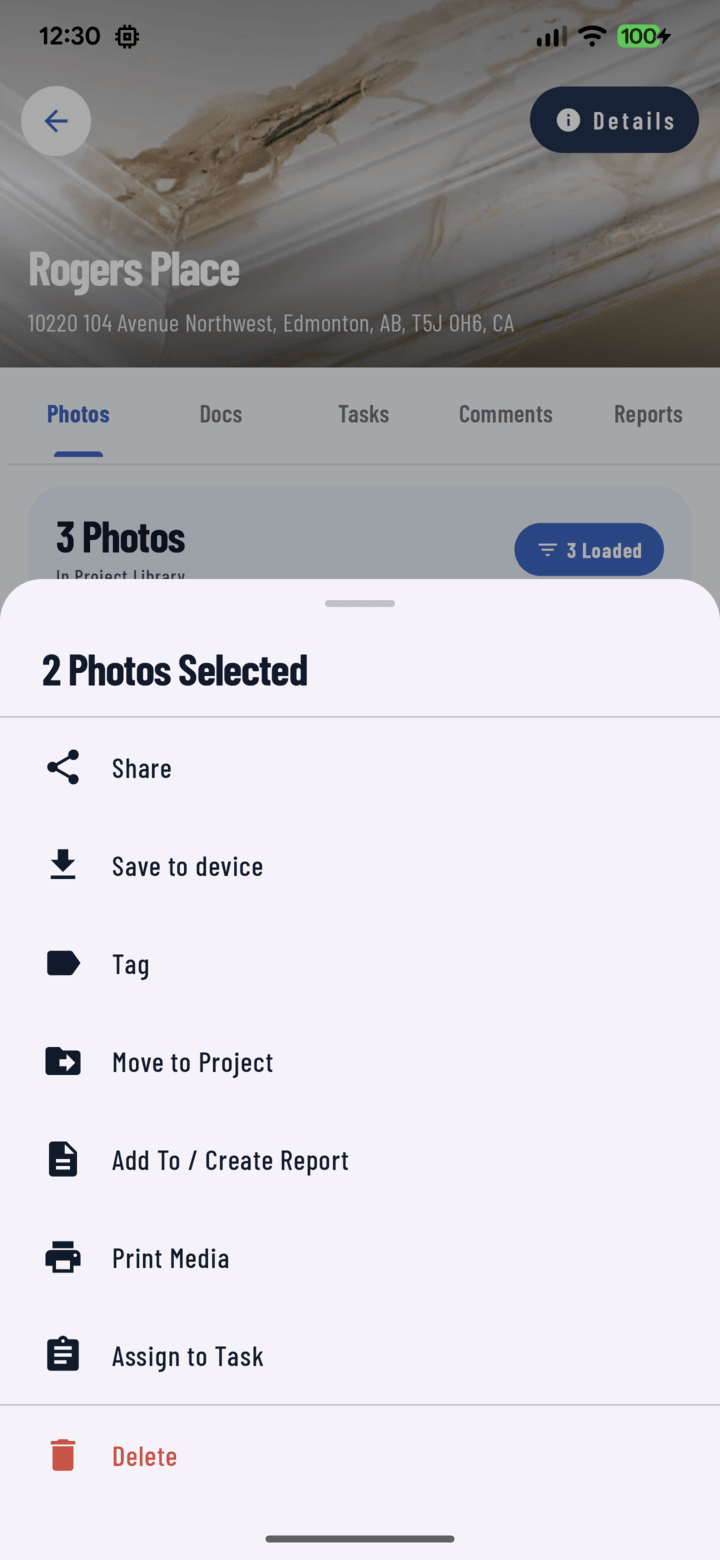
The Move to Project action in the bulk actions sheet.
Steps
- Open the Photos tab (or a project's Photos tab).
- Long-press a photo to enter selection mode.
- Select every photo to move — tap individual photos, or use the date-header toggle to select a whole day at once.
- Open the actions sheet and choose Move to Project.
- Pick the destination project from the list (searchable by name/address).
- Confirm. The photos disappear from the current project and appear in the destination.
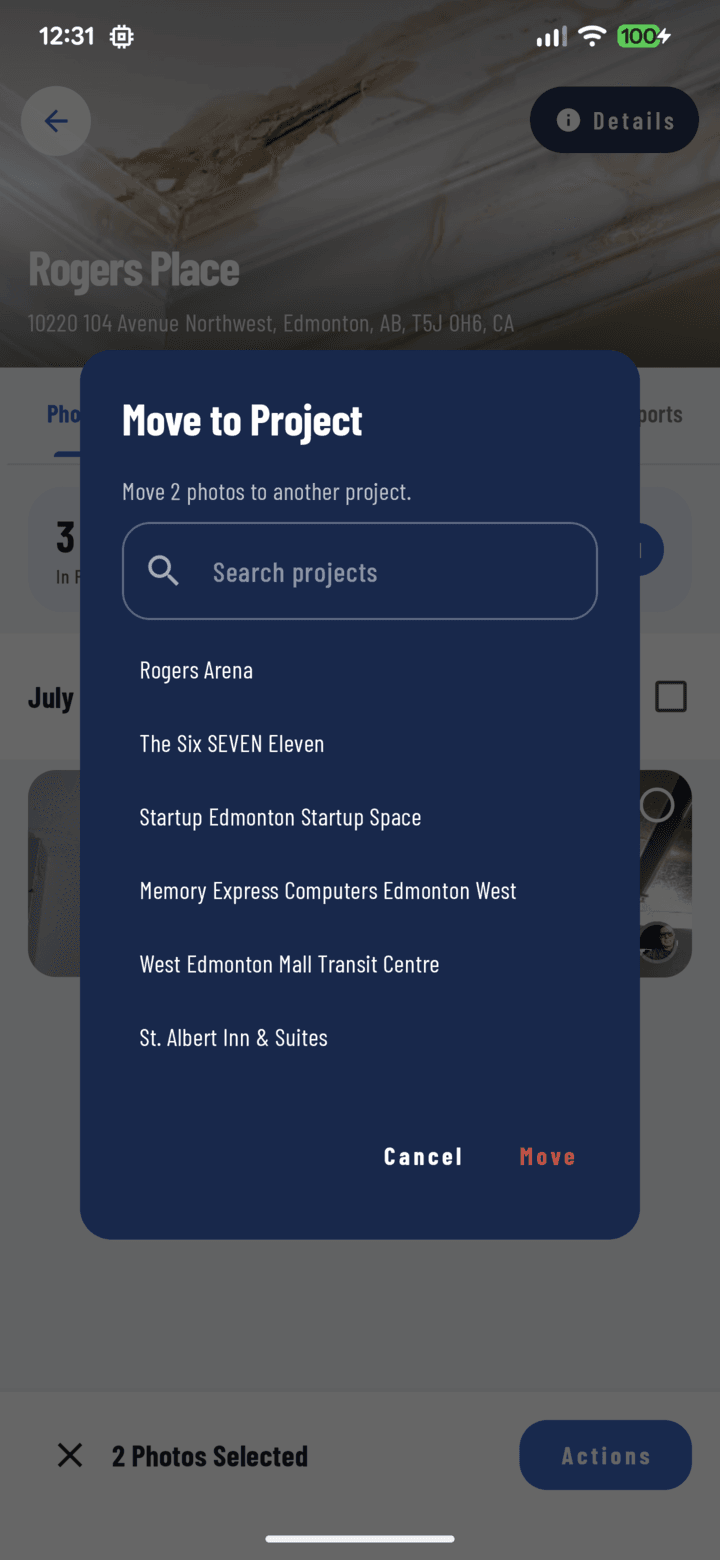
The project picker — choose the destination project by name or address.
Notes
- Documents can be moved between projects the same way, from the Documents tab's selection actions.
- You'll find a media-transfer notification in your feed when the move completes.
Related
- Tag and organize photos
- FAQ: Photos & Camera