
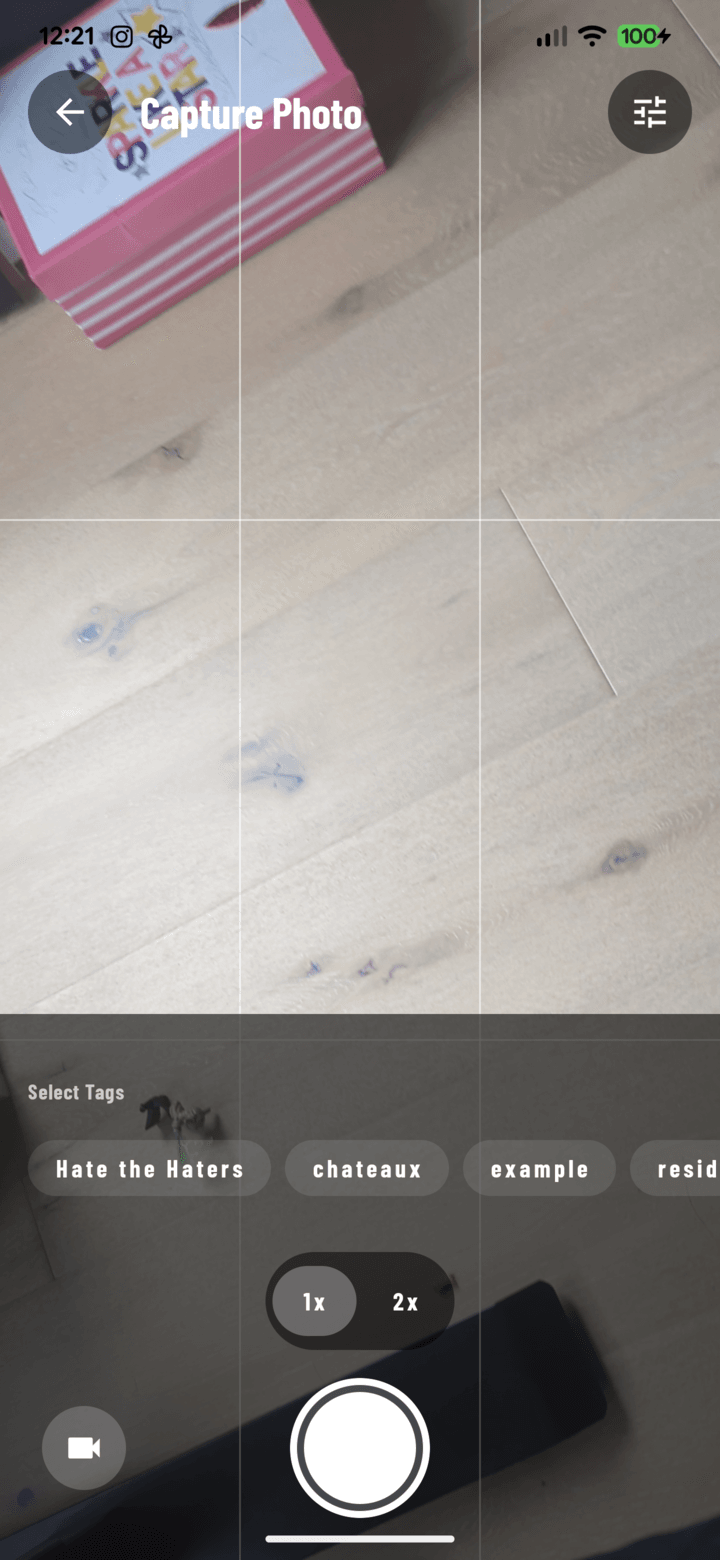
Long-press the shutter to reveal the video control at the bottom left.
Steps
- Open the camera for your project (swipe on Home, or use a project's camera button).
- Long-press the shutter button to reveal the video control — or use the expanded FAB inside a project (long-press the camera FAB → Video).
- Tap the record button to start. A live timer runs and the button pulses while recording.
- Tap again to stop — or let it stop automatically at the 15-second limit.
- Tap Send to queue the clip for upload. It uploads in the background with your photos.
Why 15 Seconds?
Short clips keep uploads fast and dependable on job-site connections, and keep your project library focused. For longer coverage, record several clips.
Viewing Videos
Videos appear in the project's media grid with a video badge and thumbnail. Tap to play full-screen with standard controls; landscape videos rotate the view automatically.
Related
- Capture photos in the field
- FAQ: Photos & Camera