
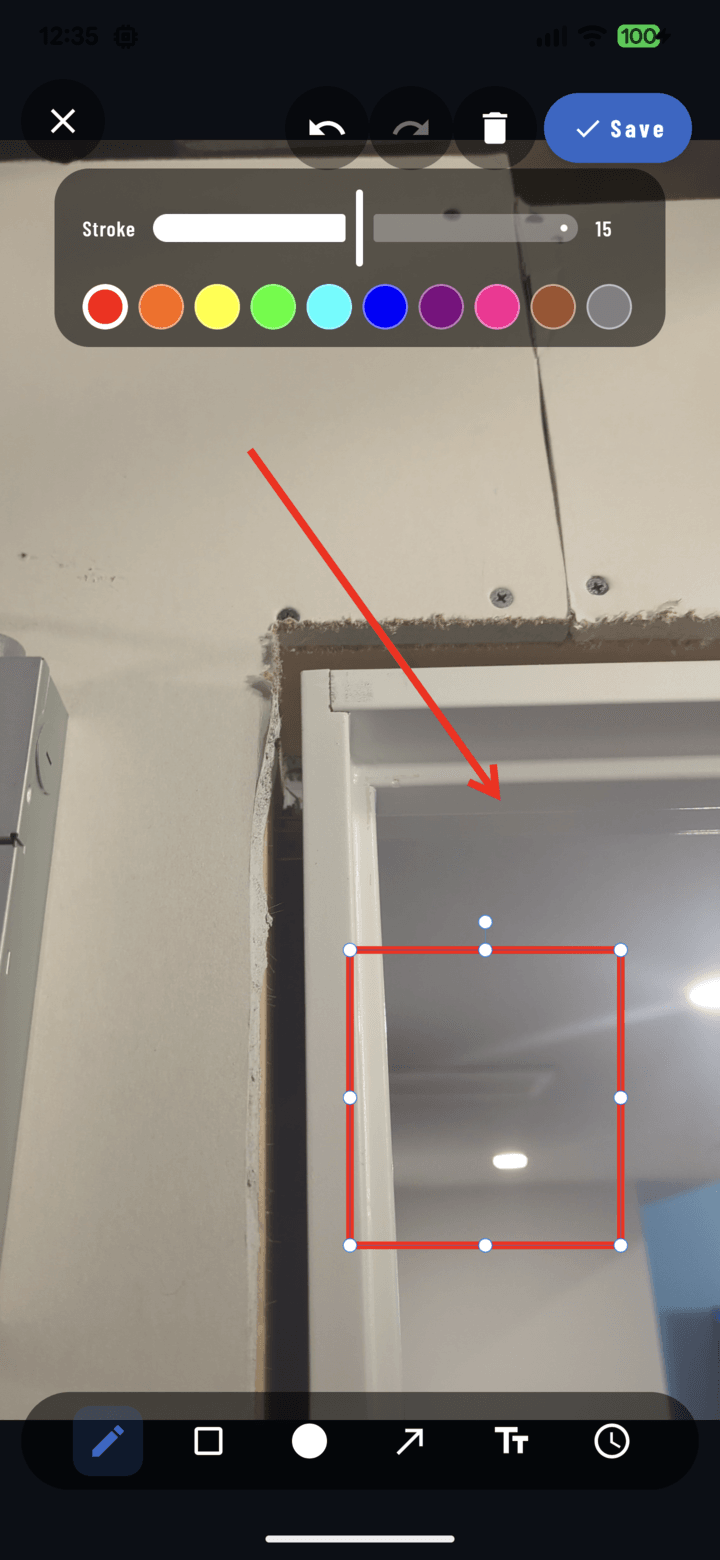
A selected shape with its eight handles — drag the body to move, the handles to resize.
Select an Object
- In the annotation editor, choose the Select tool.
- Tap any shape, line, text, or timestamp — handles appear around it.
Move It
- Drag the object's body to a new position.
- A magnifier loupe follows your drag so your fingertip never hides the exact placement point.
Resize / Reshape It
- Drag the handles: corners resize rectangles and circles; endpoints re-aim lines and arrows.
- Pinch-zoom the canvas (up to 6×) first for fine work — precision beats fat-finger.
Edit Its Look and Content
With the object selected, the contextual controls apply to it:
- Color — tap a new swatch (guide)
- Thickness — stroke slider (guide)
- Arrow mode — for lines
- Text — double-tap any text or timestamp to rewrite it (guide)
Delete It
Select → tap the delete control. Just that object goes; the rest stays. (Whole-session mistakes: undo.)
Even After Saving
Reopen Annotate on the photo any time — every object is still individually selectable and editable. That's the point of vector annotations: the markup evolves with the job.