
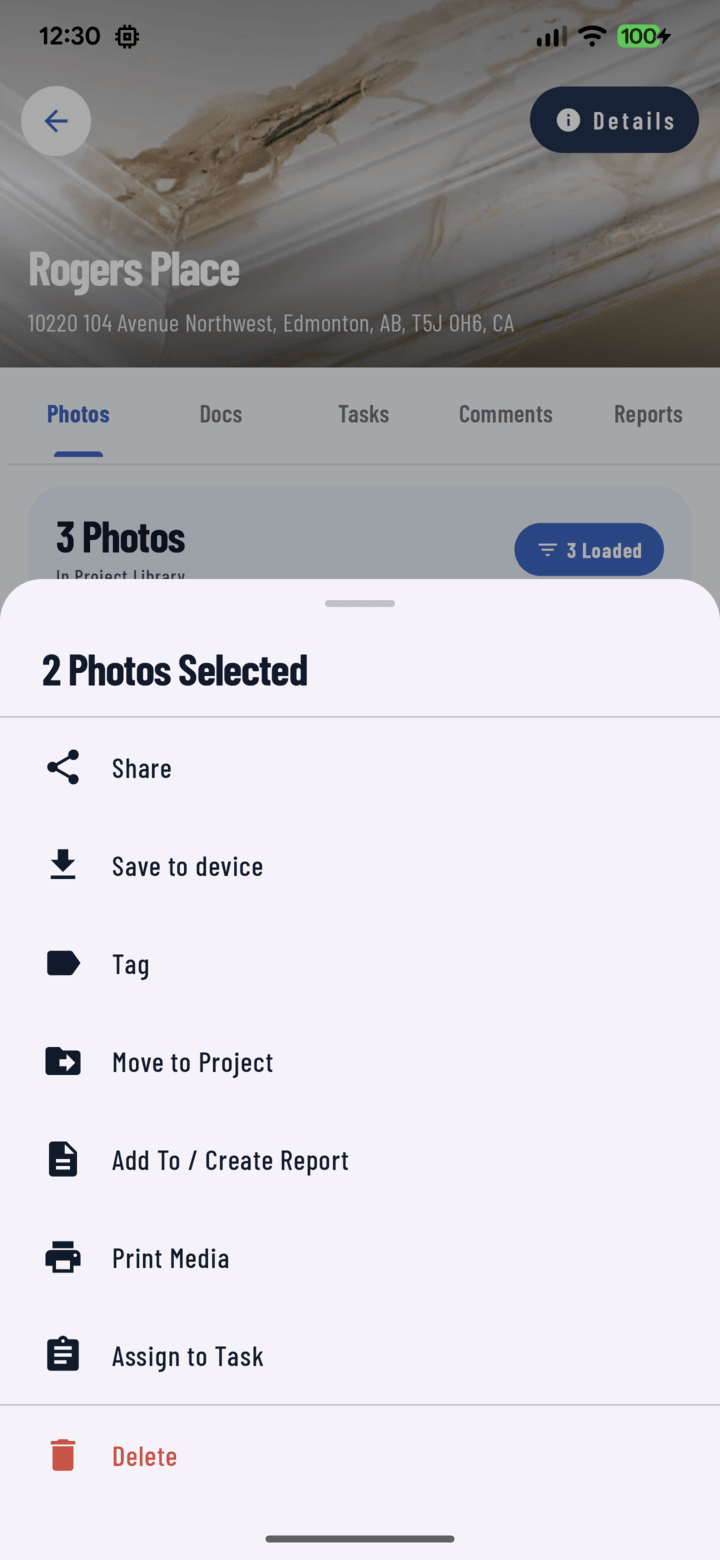
The Assign to Task action in the bulk actions sheet.
Steps
- Open the project's Photos tab and find the photos showing the issue.
- Long-press one to enter multi-select mode, then select the rest (or a whole day via the date header toggle).
- Open the actions sheet and tap Assign to Task.
- The task form opens with your photos already attached. Fill in:
• Title — "Repair flashing at chimney"
• Priority (Low / Medium / High / Urgent) and status
• Due date and optional time
• Assignee — the crew member who'll fix it
• Tags if you use them - Tap Save. The assignee gets an Assignment notification; opening the task shows them exactly what the problem looks like — no describing it over the phone.
Speed Tip
Set New-task defaults in Profile → Default Settings (default priority, due date, assign-to-me). With defaults tuned, this whole flow is: select photos → Assign to Task → type title → Save.
Also Works With Documents
The Documents tab's selection mode has the same Assign to Task action — attach the relevant plan or spec sheet to the task alongside photos.
Related
- Create and assign tasks — the full task form
- Multi-select photos & bulk actions
- Annotate a photo — circle the problem before assigning it