
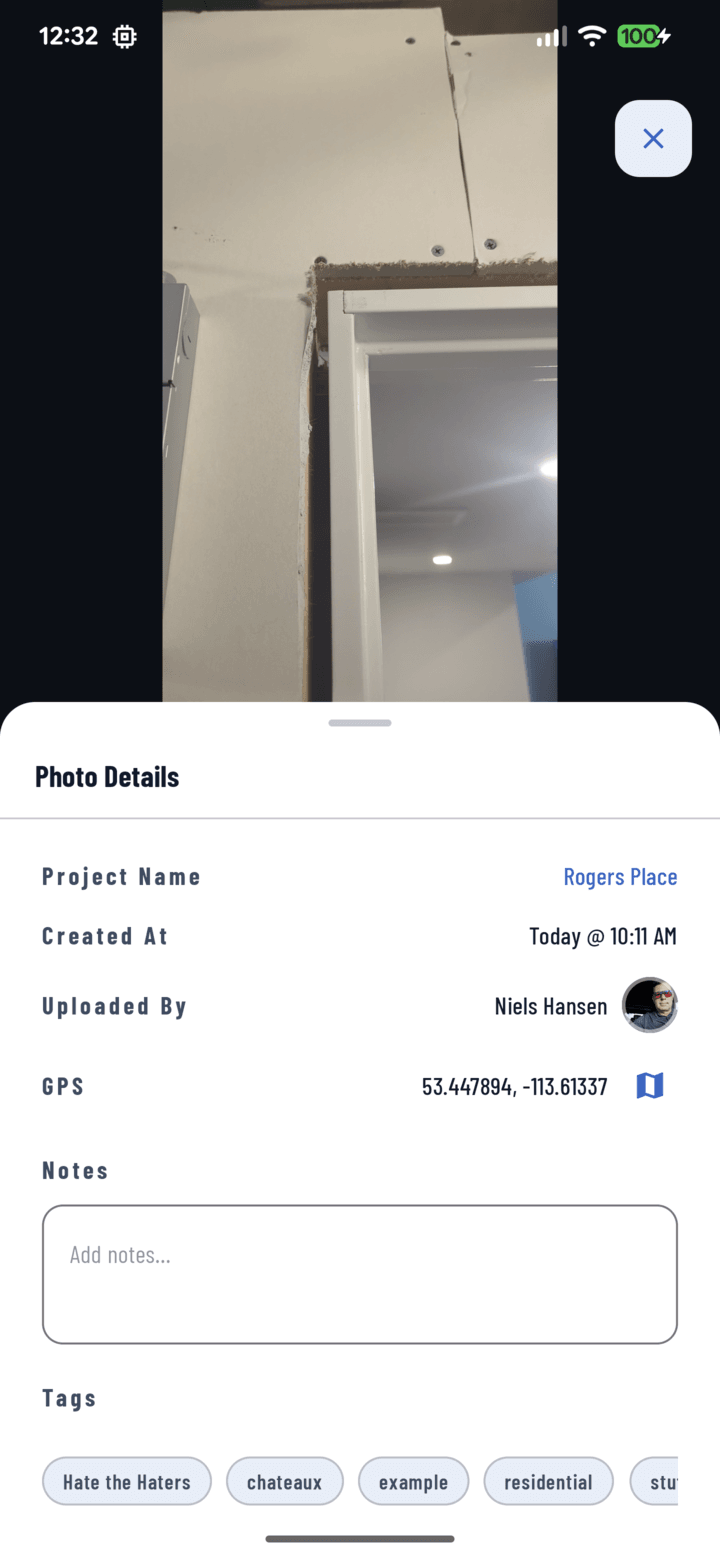
The GPS coordinates row in the Photo Details tray — the map button opens the exact spot.
Getting GPS on Your Photos
- Open the camera in CrewBox — the app requests location permission on first use.
- Allow it. From then on, every photo and video you capture records latitude and longitude at the moment of the shot — along with the timestamp and your name.
- That's it. No per-photo step, and it works offline (GPS doesn't need cell signal); coordinates upload with the photo.
Where the GPS Data Appears
- Photo details tray: open any photo full-screen → Details — the coordinates are listed, and tapping them opens the location in your maps app ("where exactly was this taken?" answered in one tap).
- PDF reports: the report Settings tab has a photo GPS toggle — print coordinates under every photo for insurance claims and dispute documentation (report settings).
Why It Matters
Time-stamped, GPS-verified photos are the difference between "we documented the damage" and provable documentation — adjusters, inspectors, and courts weigh location-stamped evidence differently.
No GPS on a Photo?
Location permission was off at capture time, or the photo was imported from the gallery. Enable permission for future captures — coordinates can't be added retroactively to old shots.