
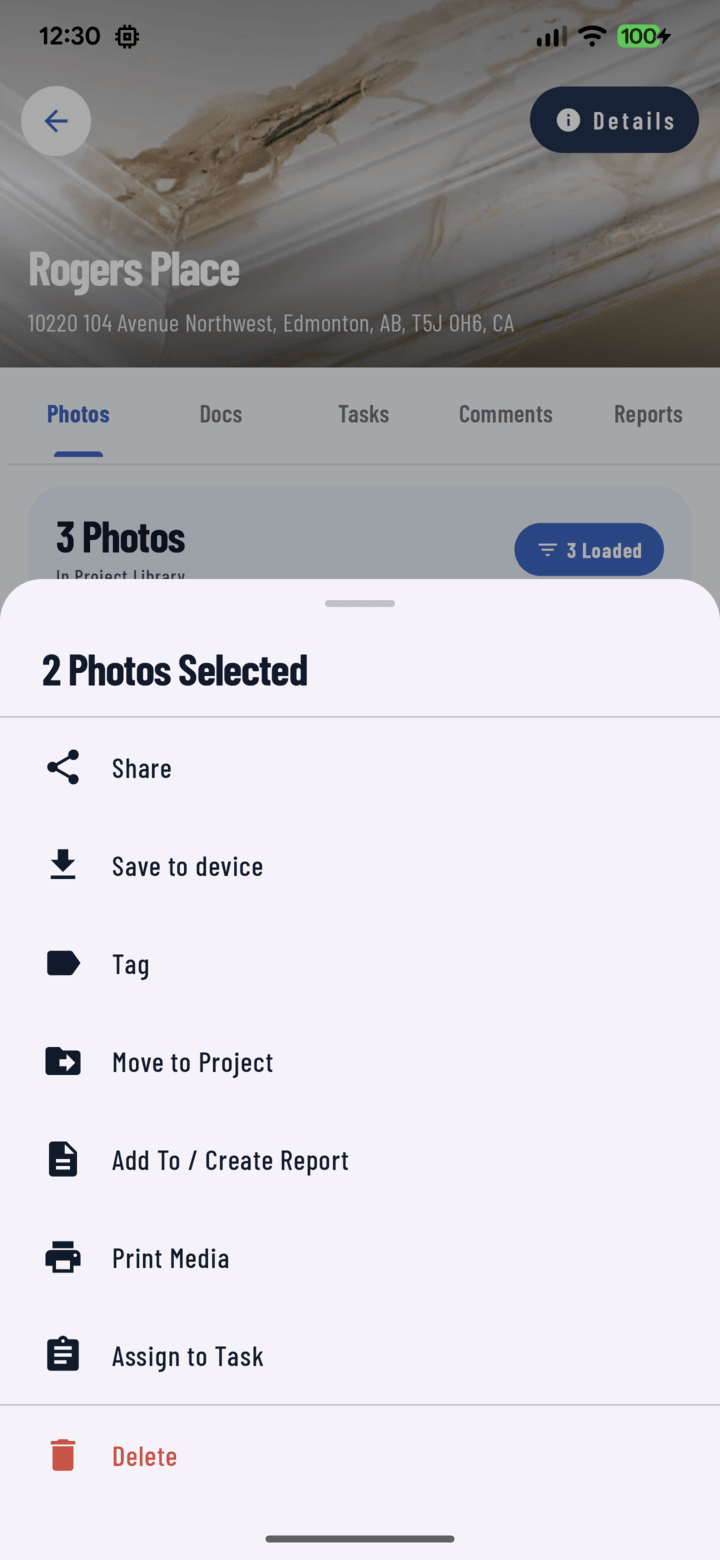
The Print Media action in the bulk actions sheet.
Steps
- Open the project's Photos tab (or the main Photos tab).
- Long-press a photo to enter multi-select mode.
- Select the photos to print — individually, or a whole day via the date header toggle.
- Open the actions sheet and tap Print.
- Photos download (progress overlay), then your phone's system print screen opens.
- Pick the printer (AirPrint / Android print services), set copies and paper, and print.
Tips
- Single photo? Open it full-screen → More → Print.
- Documents print too: any PDF, plan, or generated report prints from its viewer or the Documents tab's bulk actions.
- For a client-ready packet with captions and branding, generate a PDF report and print that instead — much cleaner than loose photos.