
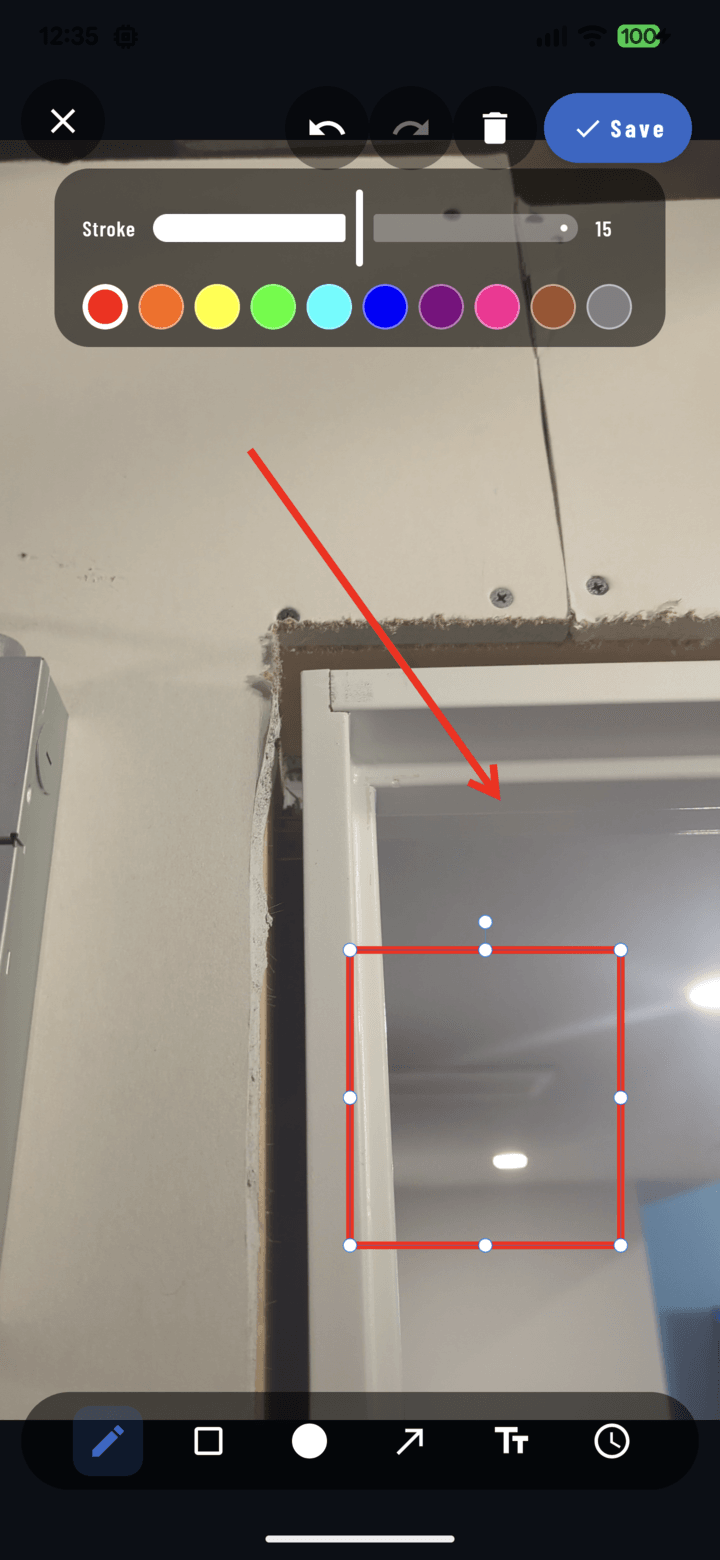
A drawn rectangle with its resize handles.
Draw a Circle
- Open the photo full-screen → Annotate.
- Select the Circle tool.
- Drag on the photo — the ellipse sizes as you drag; release when it surrounds the target.
Draw a Rectangle
- Select the Rectangle tool.
- Drag corner to corner — release when the box frames the area.
Adjust After Drawing
Switch to the Select tool and tap the shape:
- Drag the body to reposition it.
- Drag the handles to resize — the magnifier loupe keeps your fingertip from hiding the edge.
- Change color and stroke thickness from the contextual controls.
- Wrong shape entirely? Delete it (select → delete) and redraw — or just undo.
Circle vs. Rectangle — When
- Circle: single point of interest — a crack, a missing fastener, a stain.
- Rectangle: a region — a wall section, a window rough-in, an area of damaged decking.