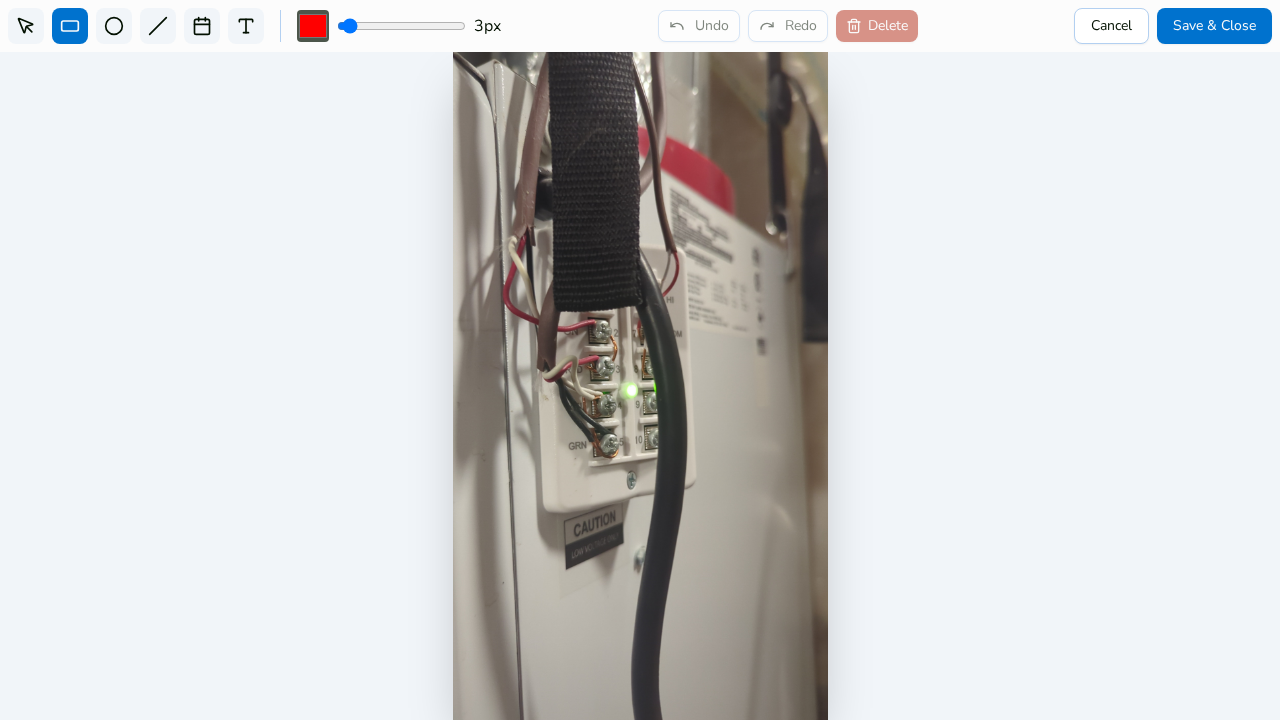
Steps
1. Open the annotation editor
In the photo viewer, click Annotate.
2. Pick a shape tool
Choose Rectangle to box an area or Circle to ring a spot.
3. Set the style
Pick a color (default red) and a stroke width from 1 to 50 px before or after drawing.
4. Drag out the shape
Click and drag on the photo to draw the shape roughly where you want it.
5. Fine-tune with the handles
Switch to the Select tool and click the shape. Corner handles appear for resizing, and you can drag the shape to reposition it.
6. Use the magnifier for precision
While you're resizing, a magnifier loupe shows a 4× zoomed view under your cursor, so you can land the edge of a circle exactly on the crack you're highlighting.
7. Save & Close
Click Save & Close to keep the markup.
Related