Steps
1. Open the project
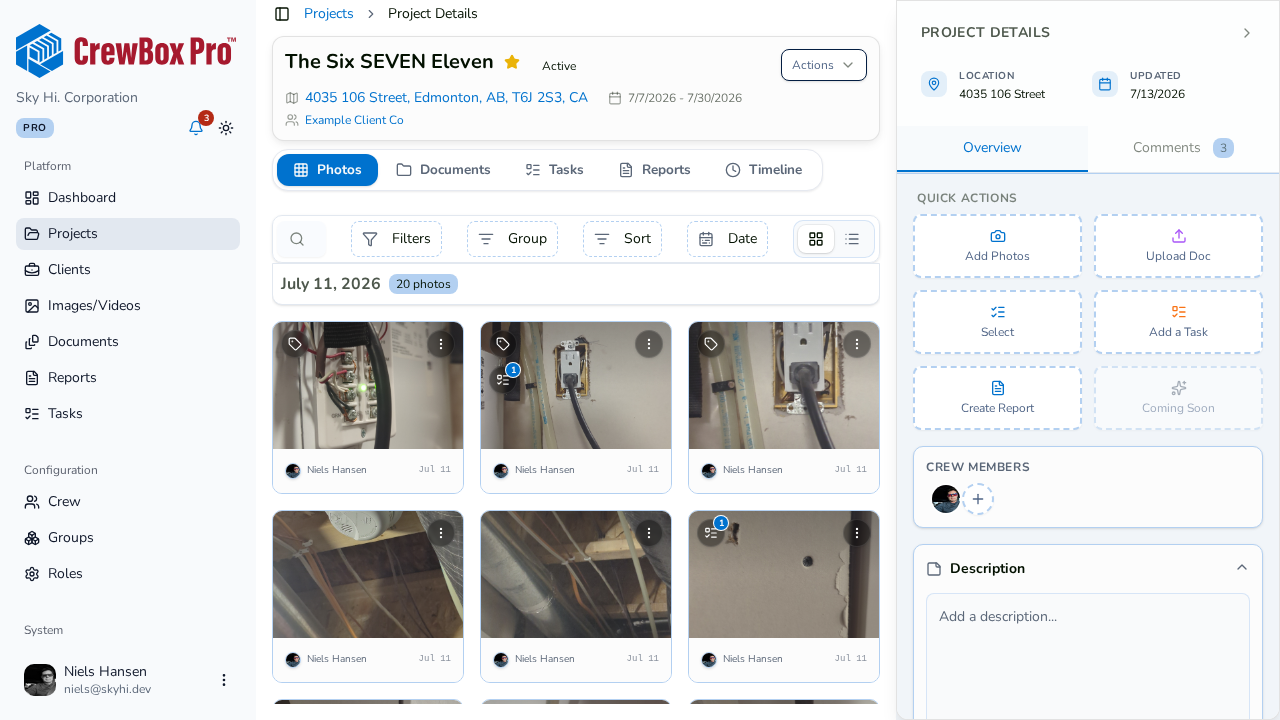
From the projects list, click the project you want to add media to. The project opens on its Photos tab.
2. Click Add Photos in the sidebar
In the project's right sidebar, find the Quick Actions section and click Add Photos.
3. Pick your files
A file picker opens that accepts both images and videos, and you can select multiple files at once. Choose everything you want to upload and confirm.
4. Watch them land in the Photos tab
Your uploads appear in the project's Photos tab, grouped with the rest of the project's media. Videos show a play badge on their preview so you can tell them apart at a glance.
Tips
- You can also start an upload with the Upload button on the Photos tab toolbar — it accepts the same multi-file mix of images and videos.
- The web console uploads existing files from your computer; camera capture happens in the mobile app.
- After uploading, use tags, notes, and grouping to keep the new media organized — see the related guides below.