
Steps
1. Open the photo
Click any photo in a project's Photos tab (or the Images page) to open the detail viewer.
2. Read the Details panel
The right sidebar has Details and Comments tabs. On Details you'll see:
- Uploader — who added the photo
- Capture date
- GPS coordinates — where the photo was taken
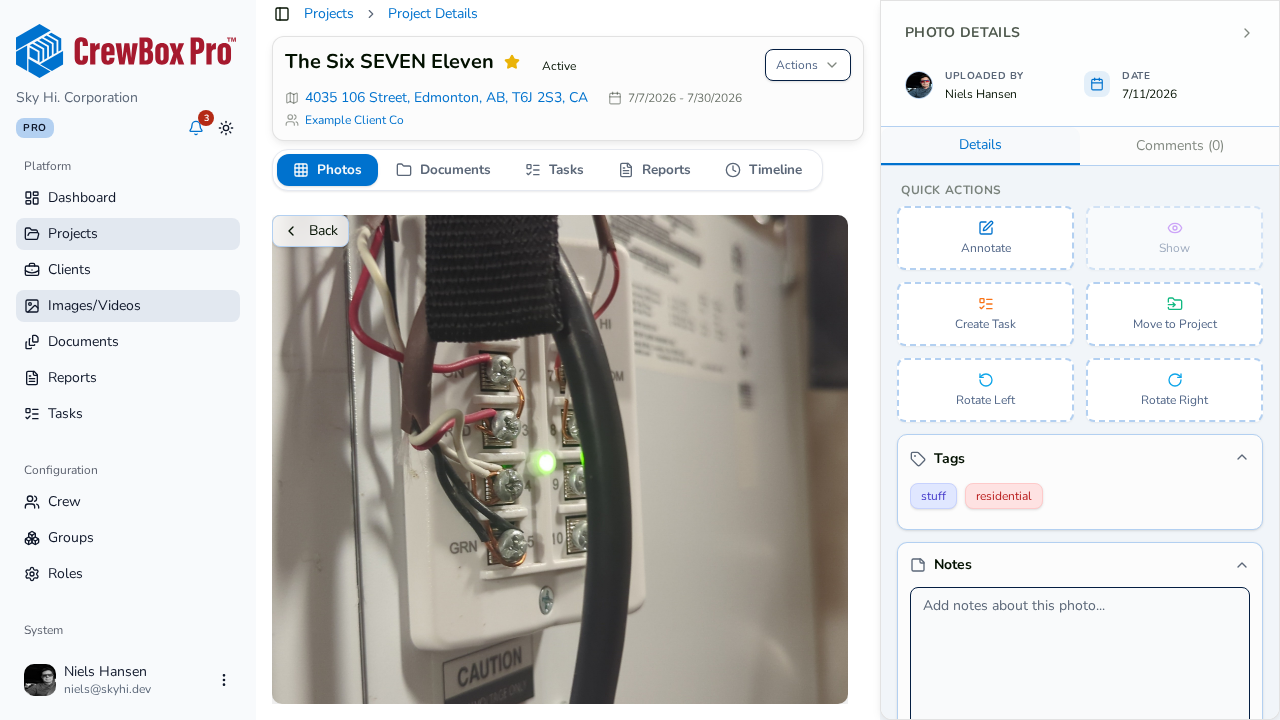
3. Check the notes
The photo's notes field sits in the viewer and is editable in place. See the notes guide below for the unsaved-changes behavior.
4. Review the tags
The Tags accordion shows every tag on the photo and lets you edit them in place.
5. Expand Linked Tasks
The Linked Tasks accordion lists every task this photo is attached to, paginated. Click a task to open it in the task editor.
Tips
- Use the Previous / Next arrows (on-screen or keyboard) to step through the project's photos without leaving the viewer; Escape closes it.
- The viewer's URL is deep-linkable — share it and a teammate lands on the same photo.