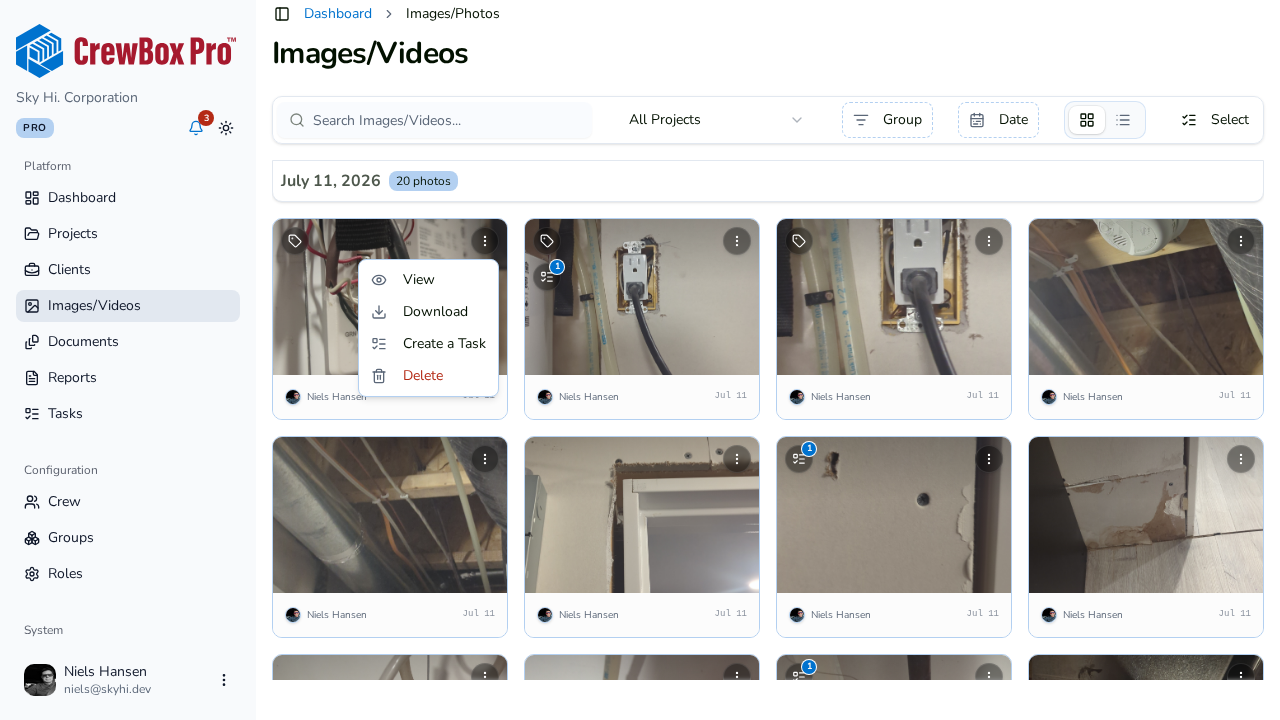
Steps
1. Enter Select mode
On the Photos tab or the cross-project Images page, click Select so checkboxes appear on the grid.
2. Select what you want
Check individual photos and videos, or use the group header toggles to select an entire date, label, or uploader section.
3. Choose Save to Device
In the floating action bar, open the Actions menu and click Save to Device.
4. Collect your downloads
The selected files download through your browser to your usual downloads location.
Tips
- Narrow with search, tags, or a date range before selecting — filters compose with Select mode, so you download exactly the set you filtered to.
- The Share action also falls back to a download when the browser has no native share sheet, so either route can get files onto your machine.