
Steps
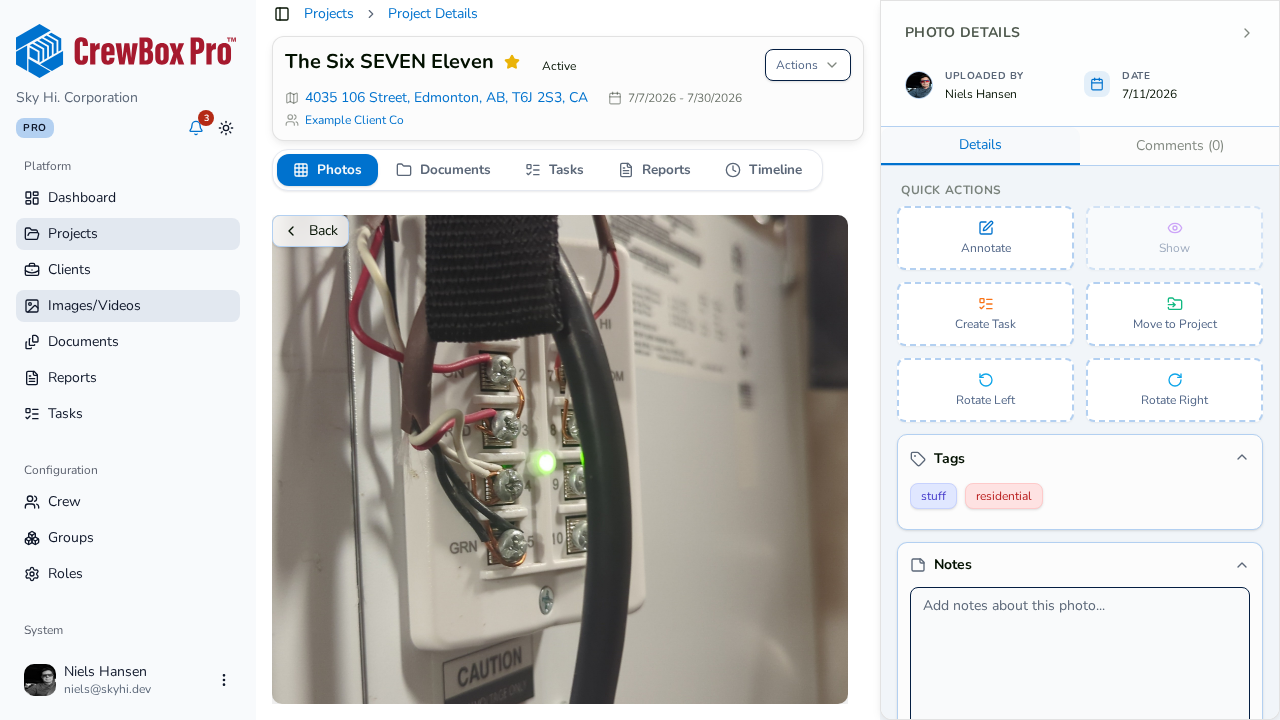
1. Open the photo
Click the photo in a project's Photos tab to open the detail viewer.
2. Edit the notes field
Click into the notes field in the viewer and type. Notes live with the photo and are searchable from the Images page.
3. Save your changes
Save the note before moving on — or let the guard catch you (next step).
4. Trust the unsaved-changes guard
If you try to close the viewer or step to the previous / next photo with unsaved note edits, CrewBox stops you with a prompt:
- Discard — drop the edits and continue
- Save & Continue — keep the edits, then navigate
You can't silently lose a half-written note by hitting an arrow key.