
Steps
1. Open the Photos tab toolbar
In a project's Photos tab, the toolbar holds every filter control.
2. Search
Type in the search box to filter the media by keywords.
3. Filter by tags
Open the tags filter and pick one or more tags — only media carrying those tags stays visible.
4. Sort
Choose a sort order:
- Newest First
- Oldest First
- Last Updated
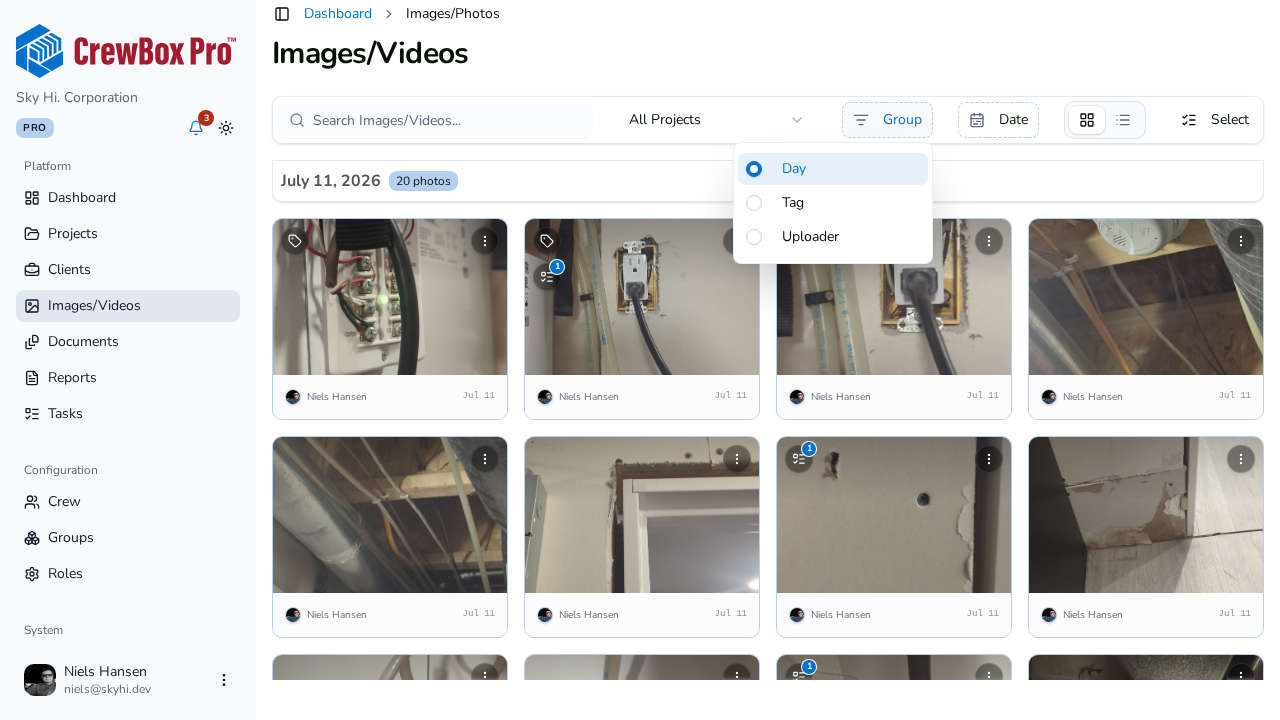
5. Set a date range
Use the date range picker to limit results to a specific window — a week of demo work, a single inspection day, and so on.
6. Group the results
Set Group by to Day, Label, or Uploader to organize whatever survives your filters into scannable sections.
Tips
- Filters compose with Select mode: narrow first, then multi-select and bulk-act on exactly the filtered set.
- The same search, grouping, and date-range controls exist on the cross-project Images page.