
Steps
1. Work in the annotation editor
Open a photo, click Annotate, and draw, move, or delete markup as usual.
2. Undo a step
Click Undo to reverse your most recent action — a drawn shape, a move, a resize, a delete. Keep clicking to walk further back through the session's history.
3. Redo if you went too far
Click Redo to step forward again and restore what you just undid.
4. Know the difference: Cancel vs Save
When you're done, the editor gives you two exits:
- Save & Close — commits everything as it currently looks; the annotations are stored with the photo.
- Cancel — discards the entire editing session; the photo keeps whatever annotations it had before you opened the editor.
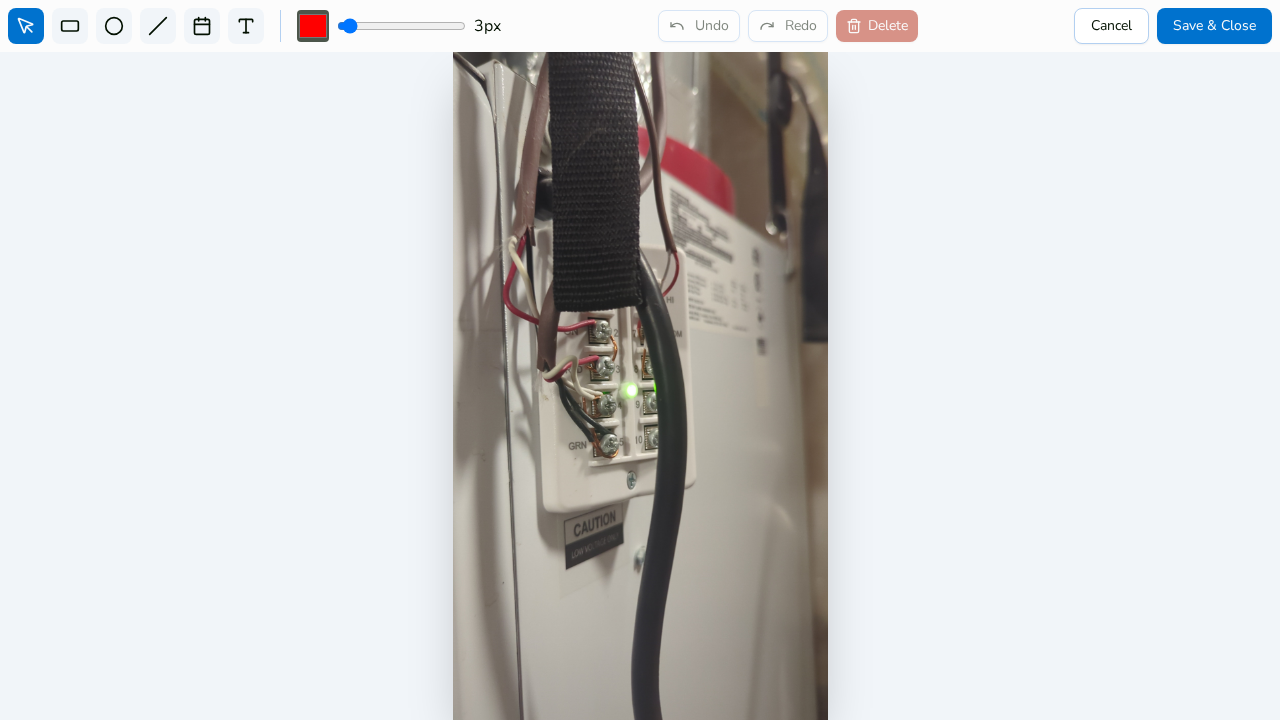
Undo/redo is your fine-grained control during the session; Cancel is the big red escape hatch for the whole session.
Tips
- Because annotations are non-destructive vector overlays, even saved markup never damages the original photo — you can reopen the editor later and keep adjusting.