
Steps
1. Open the Images page
From the main dashboard navigation, open Images/Videos (/o/dashboard/images).
2. Narrow to a project (optional)
Use the Project select to limit the library to a single job — or leave it open to browse everything at once.
3. Search across everything
The search box matches file names, notes, AI descriptions, project names, and tags, so you can find "the corroded valve photo" even if you don't remember which project it's in.
4. Refine with grouping and dates
- Group by day, label, or uploader.
- Set a date range to focus on a specific window of work.
- Toggle between grid and list views. The list view adds a project column that links each item back to its job.
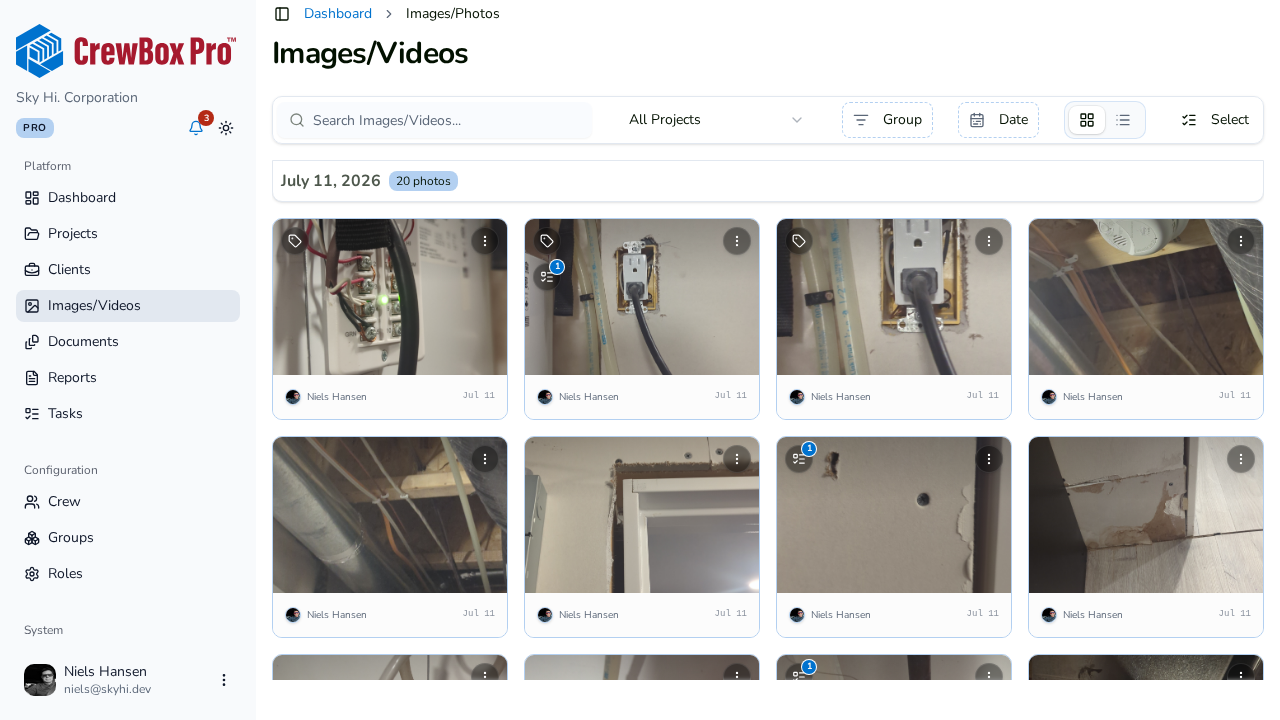
5. Click through to the viewer
Clicking any item opens it in the full photo viewer within its project, with all the usual details, notes, and annotation tools.
Tips
- Select mode and bulk actions work here too, across projects — see the multi-select guide below.