Steps
Move a single photo
1. Open the photo
Click the photo to open the detail viewer.
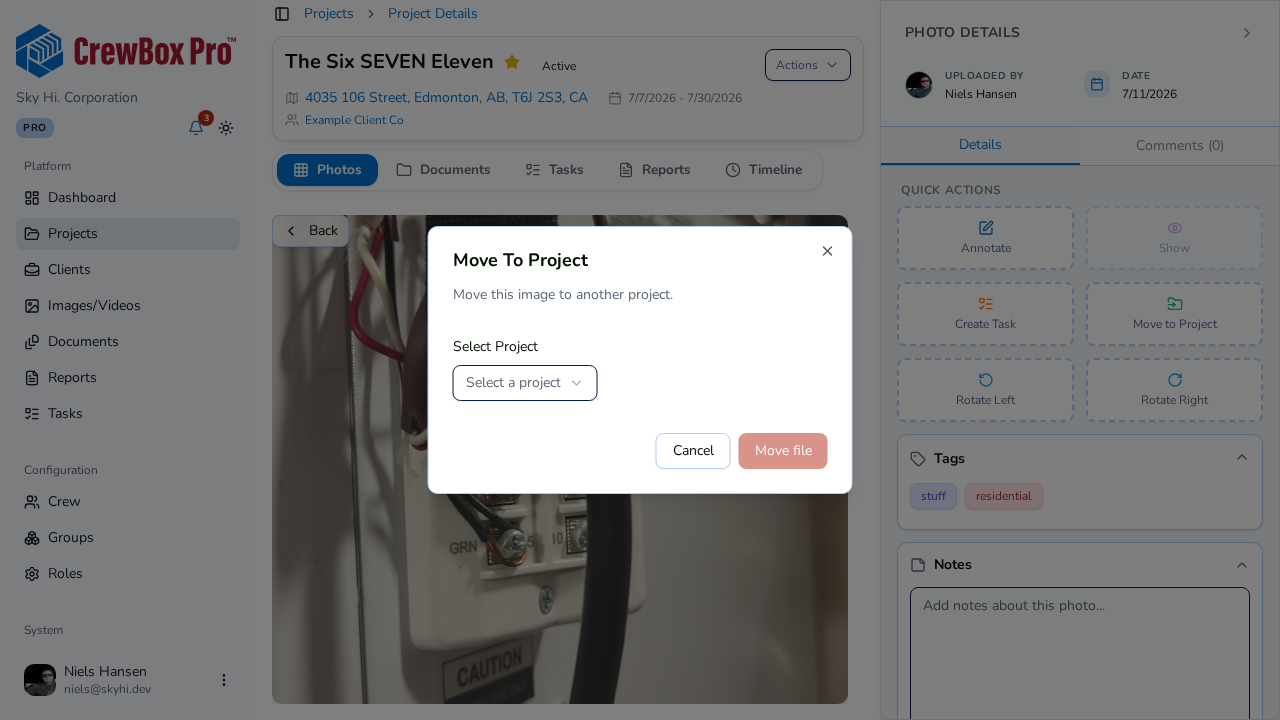
2. Click Move to Project
In the viewer's Quick Actions, choose Move to Project.
3. Pick the destination
Select the target project in the dialog and confirm. The photo transfers, and the change appears immediately.
Move a batch
4. Enter Select mode
On the Photos tab (or the cross-project Images page), click Select and check every photo and video you want to move — group header toggles grab whole sections.
5. Choose Move to Project from Actions
In the floating action bar's Actions menu, click Move to Project, pick the destination project, and confirm. The entire selection transfers together.
Tips
- Everything the media carries — notes, tags, annotations — travels with it.
- Filter first (by date range or uploader, say) so the batch you select is exactly the misfiled set.