Steps
Delete a single photo
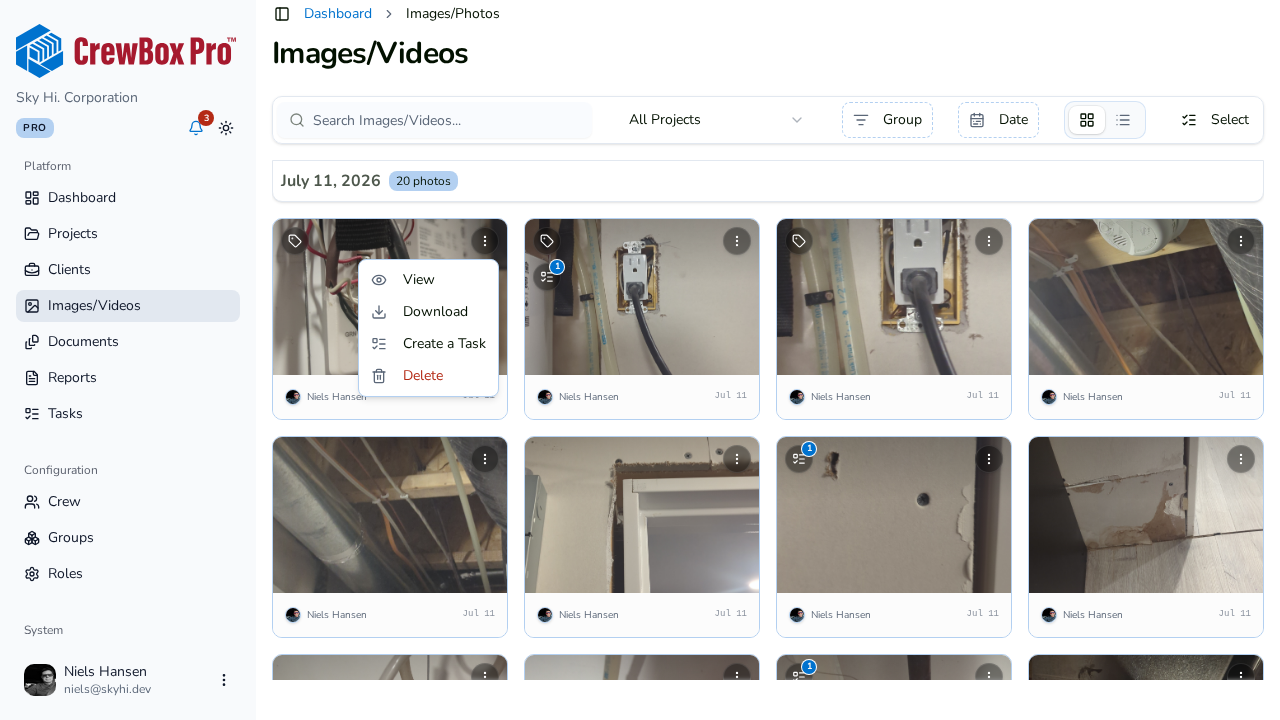
1. Find the photo's Delete action
From the Photos tab, open the photo's per-item actions and choose Delete.
2. Confirm
A confirmation dialog asks you to confirm before the photo is removed.
Delete a batch
3. Enter Select mode
Click Select on the Photos tab (or the cross-project Images page) and check every item to remove — group header toggles select whole sections.
4. Choose Delete from Actions
In the floating action bar's Actions menu, click Delete, then confirm in the dialog. The whole selection is removed at once.
Tips
- Filter first (search, tags, date range) so your selection contains only what you truly mean to delete — filters compose with Select mode.
- If a photo is merely in the wrong place, Move to Project is usually the better fix than deleting and re-uploading.