
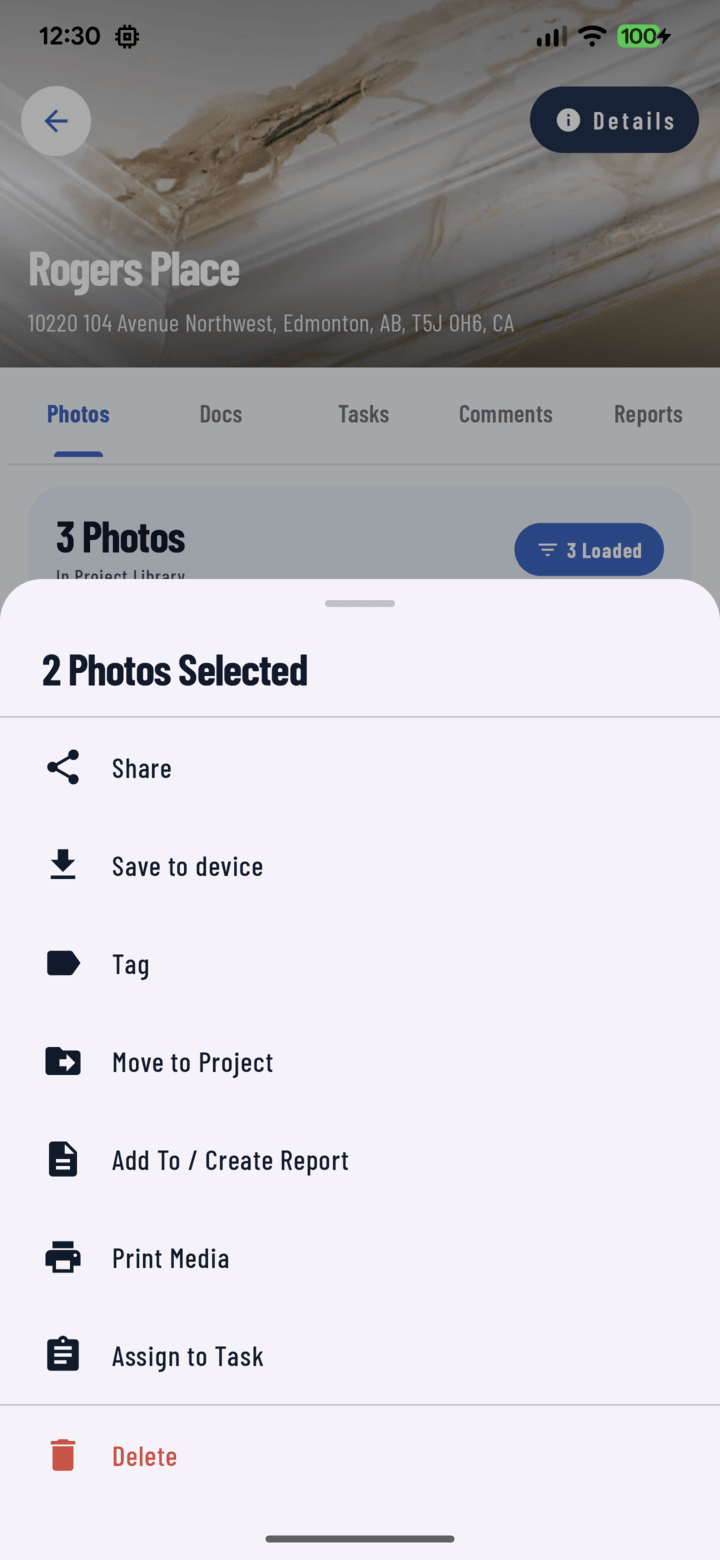
The Delete action sits at the bottom of the bulk actions sheet.
Steps
- Open the project's Photos tab (or the main Photos tab).
- Long-press a photo to enter multi-select mode.
- Select everything to remove — individually or whole days via the date-header toggle.
- Open the actions sheet and tap Delete.
- A confirmation dialog shows the count — confirm to delete permanently.
Who Can Delete
Deletion is role-gated: the project owner, project managers, and the person who captured the photo. Media still uploading can't be deleted from the grid. This keeps documentation trustworthy — a sub can't quietly remove evidence of an issue.
Before You Delete
- Deletion is permanent. If in doubt, save copies to your device first.
- Wrong project, not a bad photo? Move it instead.
- Cluttered but potentially useful? Tag it ("archive", "reject") and filter it out instead of deleting.
Single Photo
Open it full-screen → More → Delete — same permission rules, same confirmation. Deleting the viewer's last photo closes the viewer.