
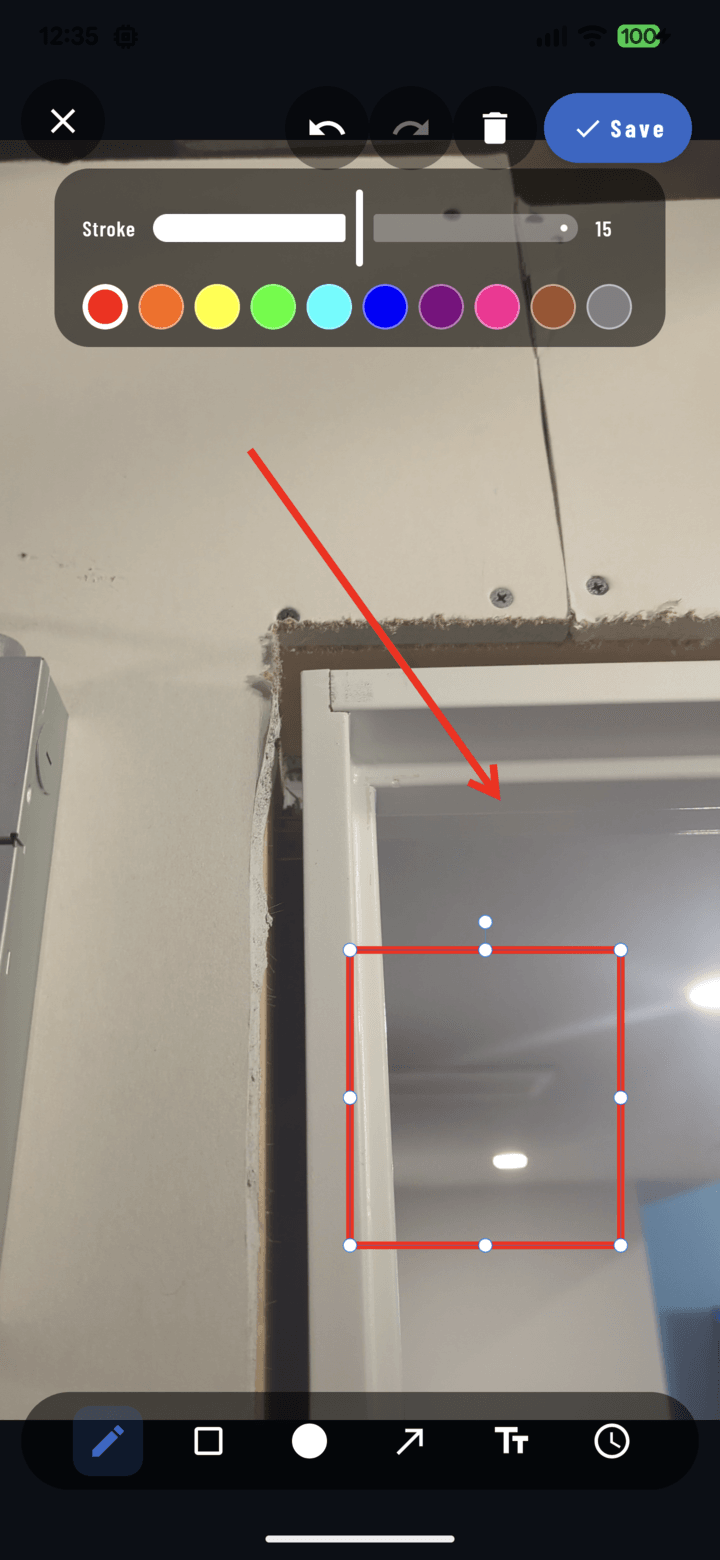
The Stroke slider in the contextual controls — here set to 15.
Steps
- In the annotation editor, pick a drawing tool (or select an existing shape/line with the Select tool).
- Find the stroke-width slider in the contextual controls.
- Slide to adjust — new drawings use the new width; a selected object updates live.
Choosing a Width
- Thin: precise callouts on zoomed-in detail shots — marking a hairline crack without covering it.
- Medium: the everyday default — visible without shouting.
- Thick: wide shots viewed at arm's length or printed small — a report page with 4 photos per page needs bolder strokes to stay legible.
Tip
Zoom matters: a stroke that looks right zoomed-in at 6× may be too thin at full view. Zoom back out before saving to sanity-check legibility.