
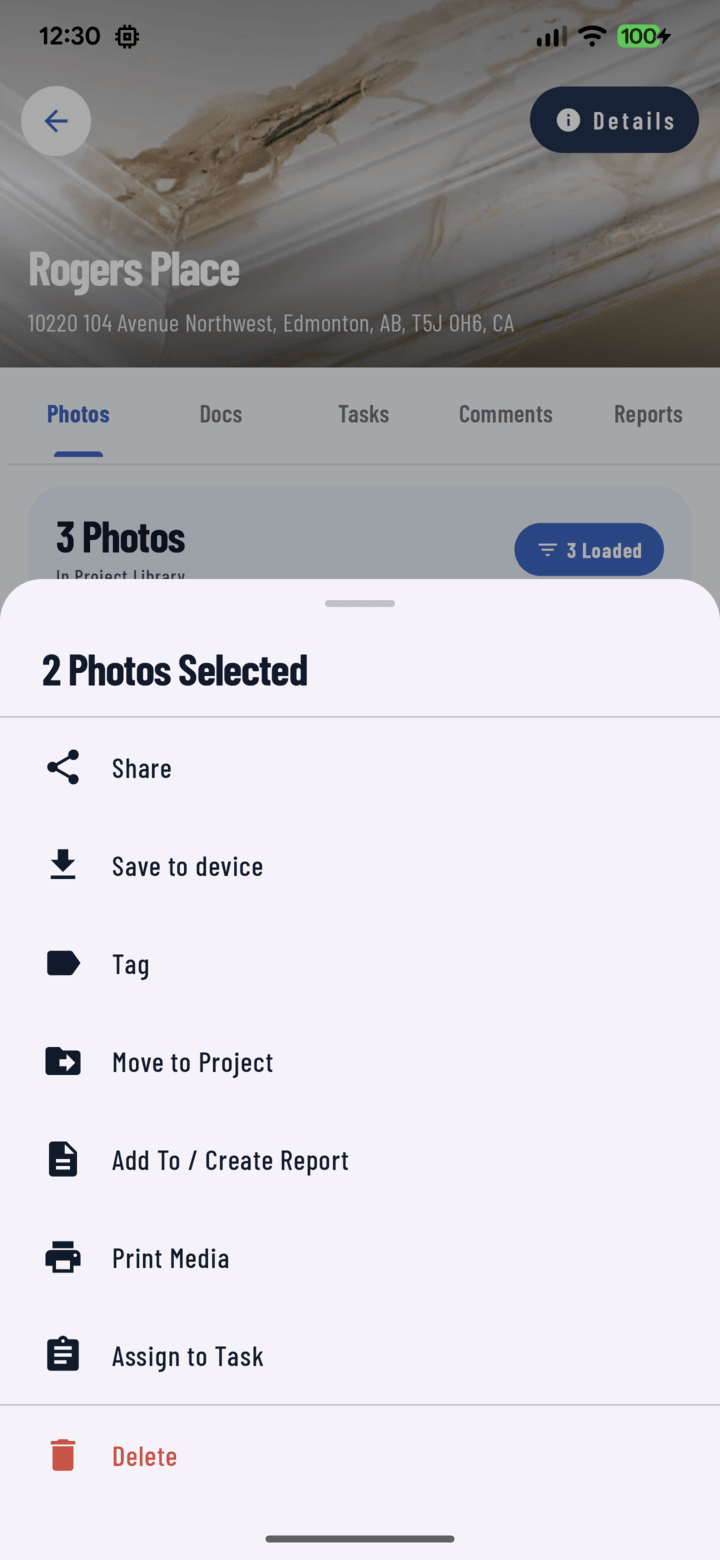
Share is the first action in the bulk actions sheet.
Steps
- Open the project from Home or Projects, then its Photos tab (or use the main Photos tab for cross-project media).
- Long-press any photo or video — the grid enters multi-select mode.
- Tap to select more items, or tap a date header's select-all toggle to grab a whole day.
- Open the actions sheet and tap Share.
- CrewBox fetches full-resolution copies (progress overlay shows while it downloads).
- Your phone's native share sheet opens — choose text/SMS, email, WhatsApp, AirDrop, Slack, or any installed app, and send.
Tips
- Single photo? Open it full-screen → More → Share — same result without selection mode.
- The recipient gets the actual media files, viewable anywhere — they don't need CrewBox.
- Sharing with a client mid-conversation is the classic use: "here's where we are as of this morning."
- For a formatted deliverable instead of raw photos, build a PDF report — cover page, captions, branding.