
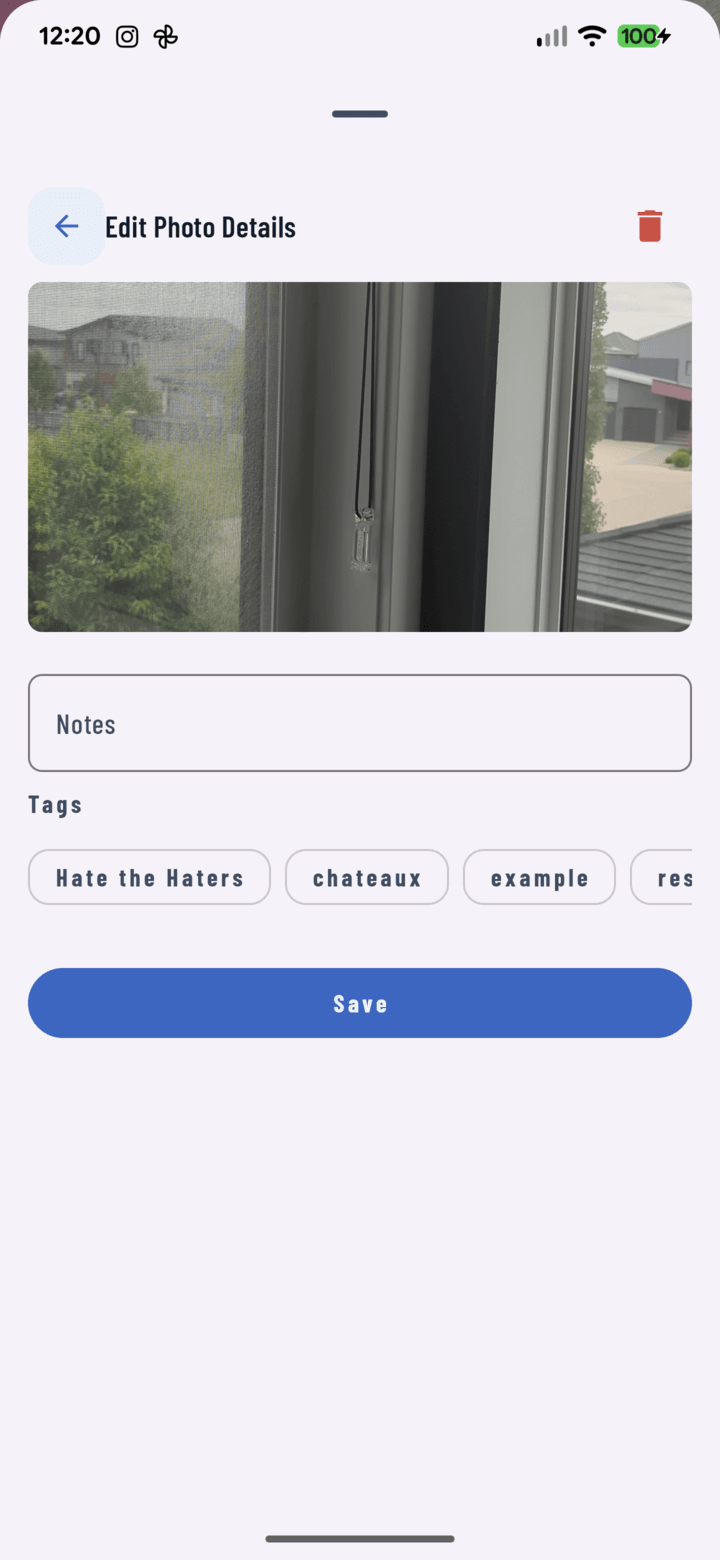
The trash icon at the top right removes a queued photo from the tray.
Steps
- In the camera, tap the tray badge (shows the queued count). The tray sheet opens with every pending capture.
- Review each photo — this is the moment to catch blur, duplicates, and accidental pocket shots.
- Tap delete on each reject — it's removed from the queue immediately.
- When only keepers remain, tap Upload All (or Send) — just those upload to the project.
Why Cull in the Tray
- Nothing has uploaded yet — deleting from the tray is consequence-free; no project clutter, no bandwidth spent, no role-gated delete needed.
- After upload, removal becomes a proper delete — confirmation dialog, owner/manager/photographer only.
- Burst mode (capture guide) makes culling routine: hold the volume key for ten frames, keep the two sharp ones.
Polish While You're There
The same tray sheet edits each photo's notes and tags before sending (tray guide) — cull, caption, send.
Related
- Use the photo tray
- Capture photos in the field
- Delete photos — after they've uploaded