
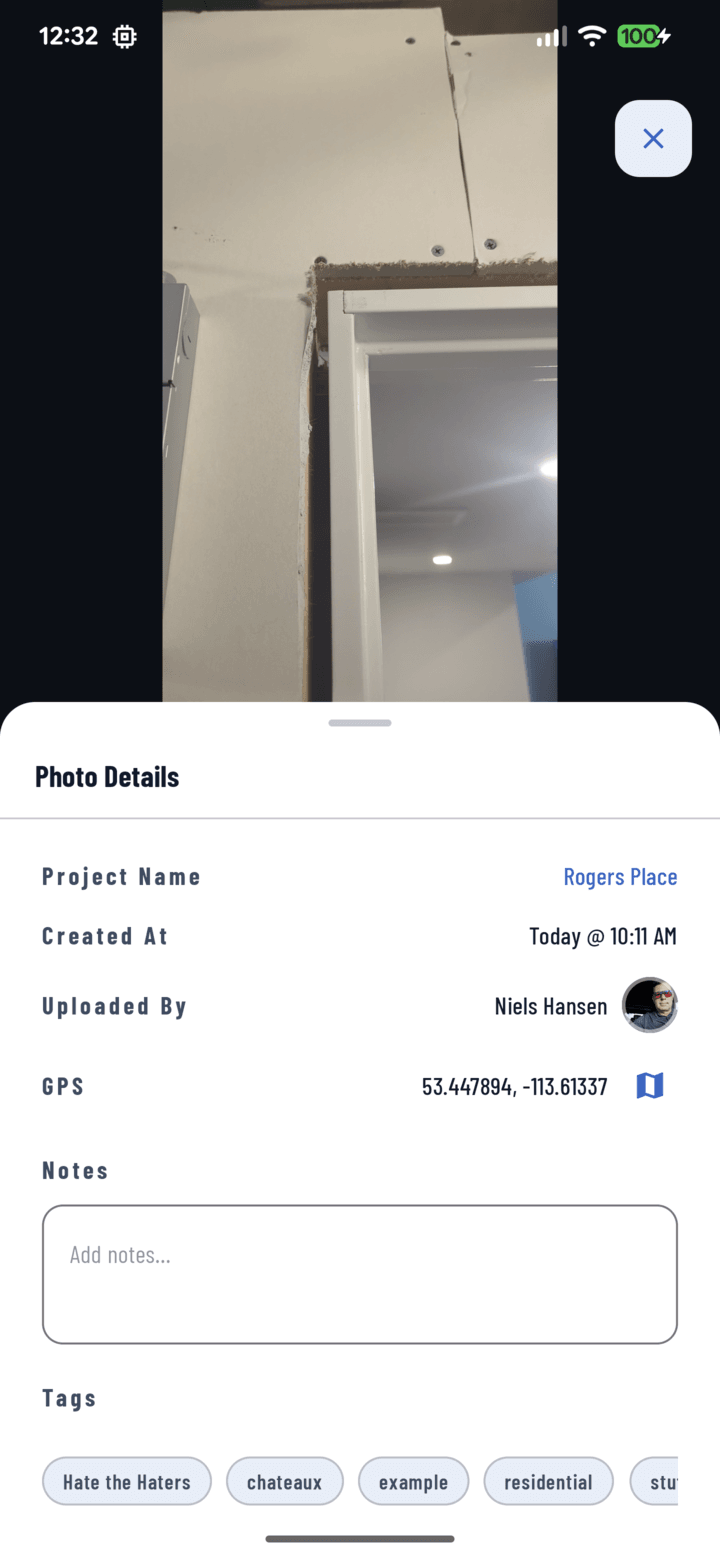
The Photo Details tray: project, capture date, uploader, GPS, notes, and tags.
Steps
- Tap the photo to open it full-screen.
- Open the Details tray (via the actions bar).
What's in the Details
| Field | What you can do with it |
|---|---|
| Project name | Tap it to jump to the project |
| Capture date & time | The automatic timestamp |
| Uploader | Who took/uploaded it — long-press for their contact card (guide) |
| GPS coordinates | Tap to open the exact spot in your maps app (how GPS works) |
| Notes | Editable — describe what the shot shows; tap Update to save |
| Tags | Editable — toggle labels on/off; Update to save |
Notes vs. Comments
Notes describe the photo (part of its record, searchable via the "with notes" filter). Comments discuss it (threaded conversation with @mentions). "SW corner, pre-backfill" is a note; "@Mike is this depth OK?" is a comment.