
The Universal Gesture: Long-Press the Avatar
Long-press any person's avatar, anywhere in the app, and their person card pops up: name, role, and one-tap Call / SMS / Email buttons.
Where It Works
| Content | Where to find the person |
|---|---|
| Photo / video | Open it full-screen → Details tray — the uploader is listed with avatar; long-press it. The details tray also shows capture date and GPS. |
| Document | Open the document → Details tray — the uploader's avatar; long-press. |
| Comment | Any comment thread (project, photo, document) — long-press the commenter's avatar next to their comment. |
| Task | Task detail — long-press the assignee's avatar. |
| Project card | The crew avatar stack shows who's assigned at a glance. |
Why It Matters on Site
"Who shot this?" and "who uploaded this revision?" usually mean "I need to ask them something." CrewBox collapses identify → contact into one gesture: long-press, then call, text, or email — no separate directory, no asking around for numbers.
Accountability Built In
Attribution is automatic — every photo records its photographer, every upload its uploader, every comment its author, timestamped. That's part of what makes CrewBox documentation dependable as a record.
Related
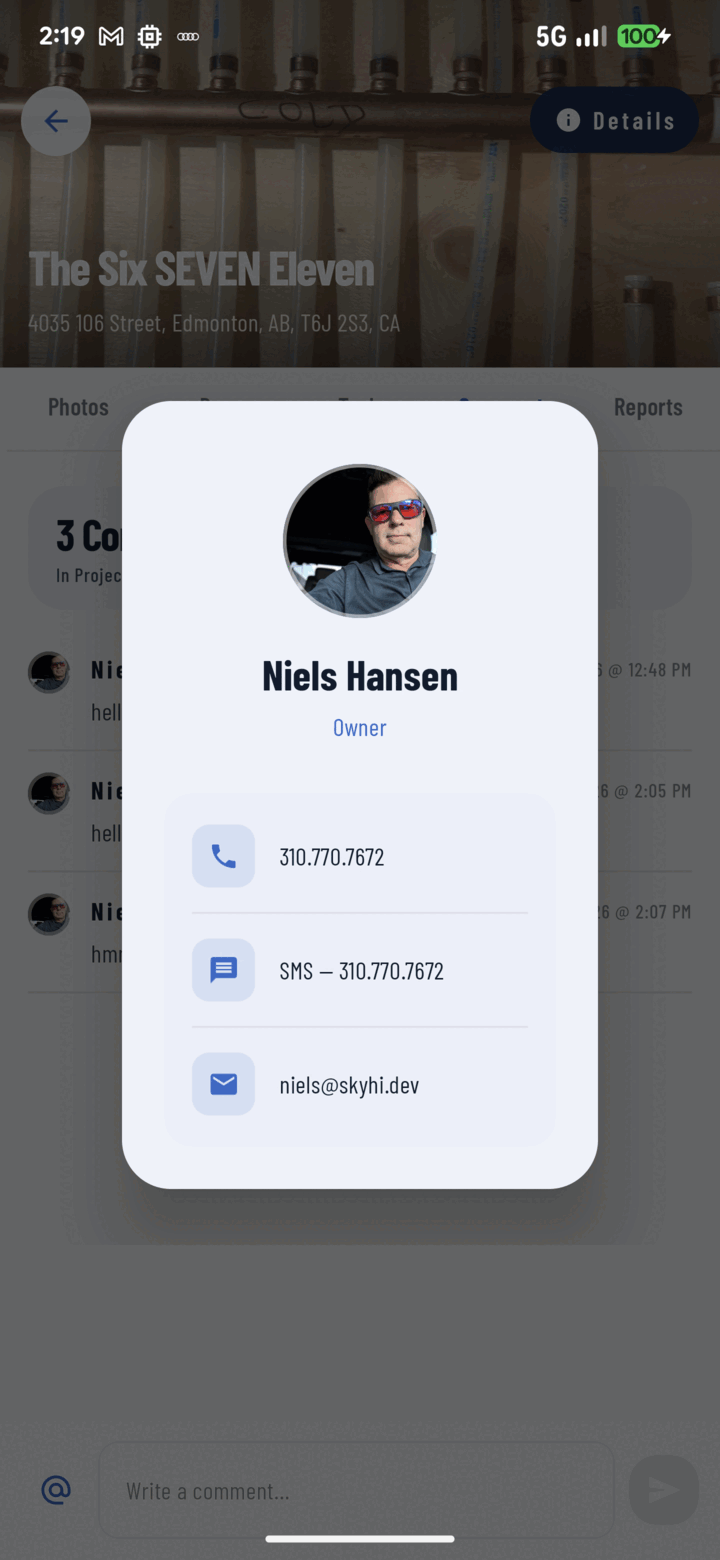
Long-press any avatar anywhere in the app to see that person's name, role, and contact options.