
The Three Comment Areas
| Where | How to open | Best for |
|---|---|---|
| Project comments | Project → Comments tab | Project-wide coordination: schedules, site access, general updates |
| Photo & video comments | Open any photo/video full-screen → Comments button (shows count badge) | Discussing exactly what's in the frame: "is this framing per plan?" |
| Document comments | Open any document → Comments button | Questions and notes on a specific plan, permit, or contract |
The commenting experience is identical in all three — learn it once, use it everywhere.
Writing a Comment
- Open the comment area (table above). On photos and documents the panel slides up and can be dragged between peek and full height, so you can read the thread while still seeing the media.
- Type your comment in the input field.
- Tap send. The comment appears instantly with your avatar and timestamp.
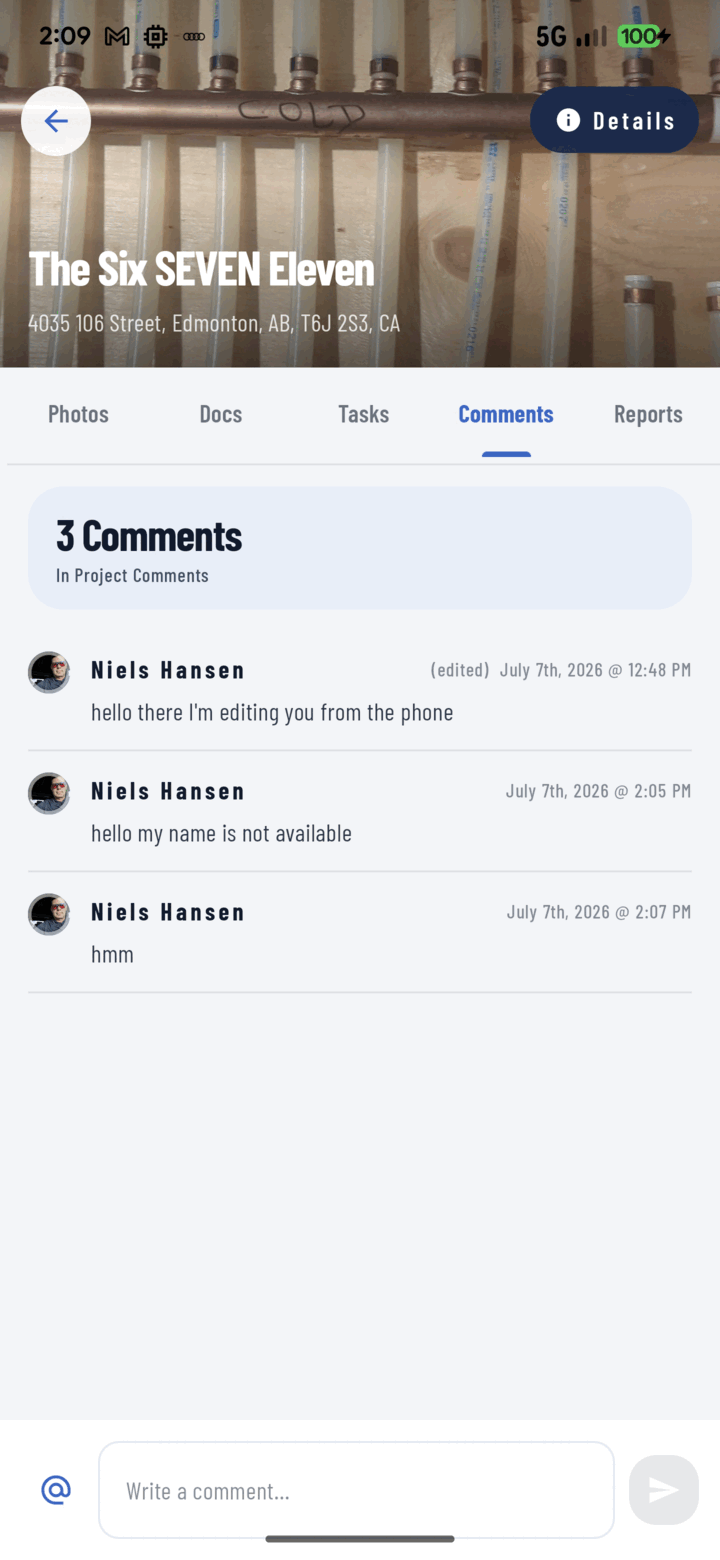
Comments live on the project's Comments tab; the @ button in the input lets you tag crew members.
@Mentioning a Teammate
Mentions are how you get the right person's attention:
- Type @ anywhere in your comment.
- An autocomplete list of teammates appears — keep typing to narrow it, then tap a name.
- Finish the comment and send.
The mentioned person receives a notification in their Mentions tab that deep-links straight to this exact conversation — the photo opens with the comments panel already up.
Example: on a photo of a footing — "@Mike footing poured 8 AM, ready for inspection?" Mike's notification opens that photo, that thread.
Editing a Comment
- Find your own comment in the thread.
- Use its edit action, correct the text, and save.
- The comment shows an "edited" label — the record stays honest (project owners can also edit).
Deleting a Comment
Project owners and managers can delete comments (moderation stays with the people accountable for the project). Deleting asks for confirmation.
From Comment to Contact
Long-press any commenter's avatar to open their person card — name, role, and one-tap Call / SMS / Email buttons. When a thread needs to become a phone call, the number is already there.
Comments Offline
Write comments with no signal — they queue on your device and post automatically when connectivity returns (you'll see them sync along with any pending photo uploads). A note written in a basement at 10 AM posts itself when you surface for lunch.
Reading Long Threads
- Threads load in pages, so hundred-comment discussions stay fast.
- Photo grids and document lists show comment-count badges, and the photo filter dialog has a "with comments" toggle — find every discussed photo in one filter.
Tips
- Comment on the photo when it's about what's in the frame; comment on the project when it's about the job as a whole. Six months later, that's the difference between finding the decision instantly and scrolling forever.
- Pair a comment with an annotation: circle the issue on the photo, then @mention the person who needs to fix it.
- Task-shaped comments ("someone needs to fix this") are usually better as a task with the photo attached — assignable, trackable, and due-dated.
Related
- Comment on a project
- Annotate a photo
- Create and assign tasks
- Work offline
- FAQ: Comments & Communication