
Where you can comment
Comments are available in five places, each with its own thread:
- Projects — the Comments tab in the project's right sidebar
- Photos and videos — the comments panel in the photo viewer
- Documents — the comments tab in the document viewer
- Plan markers — comments attached to a marker on a plan or blueprint
- Tasks — the comment thread on a task
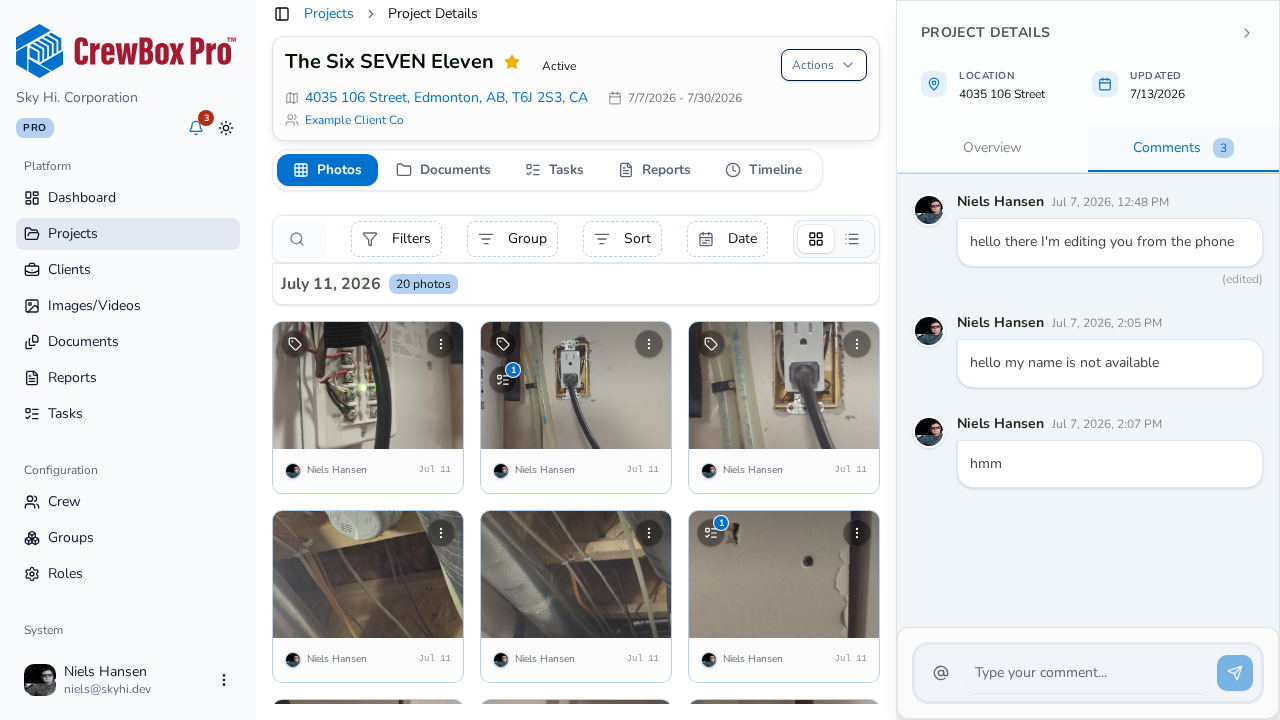
Every thread auto-scrolls to the newest message, and each surface shows its own No comments yet empty state until someone starts the conversation.
Steps
1. Write a comment
Open any of the five surfaces above, type your message in the comment box, and click Send. The Send button stays disabled while the box is empty.
2. Mention a teammate
Type @ (or click the @ button) to open the teammate picker, then choose a crew member from the autocomplete list. Mentions render as highlighted names, and the mentioned person gets a notification that deep-links them straight into the conversation.
3. Edit your own comment
You can edit comments you wrote. Open the inline editor on your comment, make your change, then press Enter to save or Escape to cancel. Edited comments carry an (edited) marker so the history stays honest.
4. Delete a comment
Deleting is role-gated: you can delete your own comments, and a confirmation dialog asks you to confirm before anything is removed.
Owner moderation
Workspace owners can also edit and delete comments across the workspace, so inappropriate or outdated messages can be cleaned up even when the author isn't available.
Finding conversations again
The dashboard's Recent Comments widget and the Notifications feed both deep-link back to the exact comment surface, so you can jump from an alert straight into the thread.