
Steps
1. Open the project
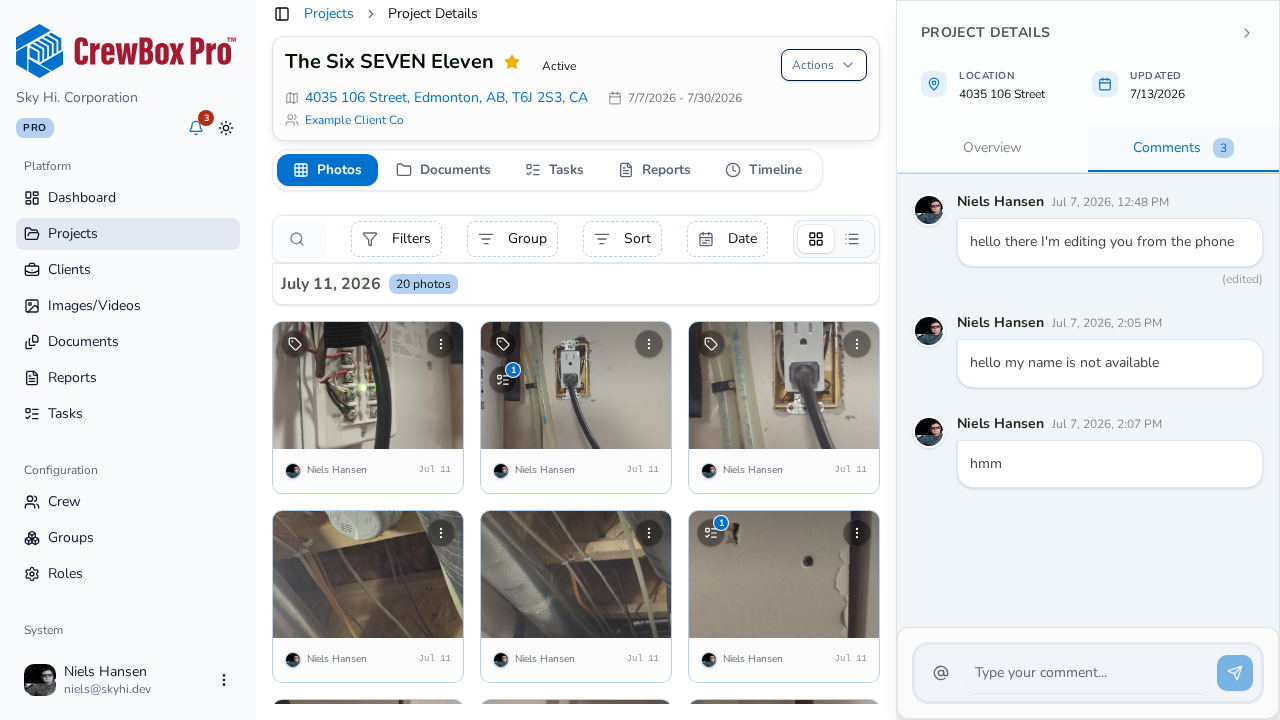
Go to Projects and click the project you want to discuss. The project detail page opens with its right sidebar.
2. Switch to the Comments tab
In the right sidebar, click the Comments tab (it shows the current comment count next to Overview). On very wide screens, both sidebar tabs display side by side. You can also click Comment under Quick Actions in the sidebar to jump into the thread.
3. Write your comment
Type your message in the comment box and click Send. The Send button is disabled while the box is empty. Type @ to mention a crew member — they'll get a notification that links them directly to the conversation.
4. Edit or delete
Press Enter to save an inline edit of your own comment, or Escape to cancel; edited comments show an (edited) marker. Deleting asks for confirmation.
Project comments vs. photo and document comments
Pick the surface that matches the subject:
- Project comments (sidebar Comments tab) — general updates, scheduling notes, and anything that concerns the project as a whole.
- Photo/video comments (photo viewer) — feedback about one specific image, like "is this framing up to code?"
- Document comments (document viewer) — discussion about one specific file, like a contract or inspection form.
Keeping feedback on the right surface means teammates who open that photo or document later see the relevant conversation right where it belongs.