
When to Use Project Comments
Comment on the project when the topic is the job as a whole and no single photo or file captures it:
- Schedule: "Inspection moved to Thursday 9 AM."
- Site logistics: "Gate code is 4482." "Park behind unit B — driveway is being poured."
- Coordination: "Drywall crew starts Monday; electrical must be done Friday."
- Daily summaries and heads-ups before any photo or document exists yet.
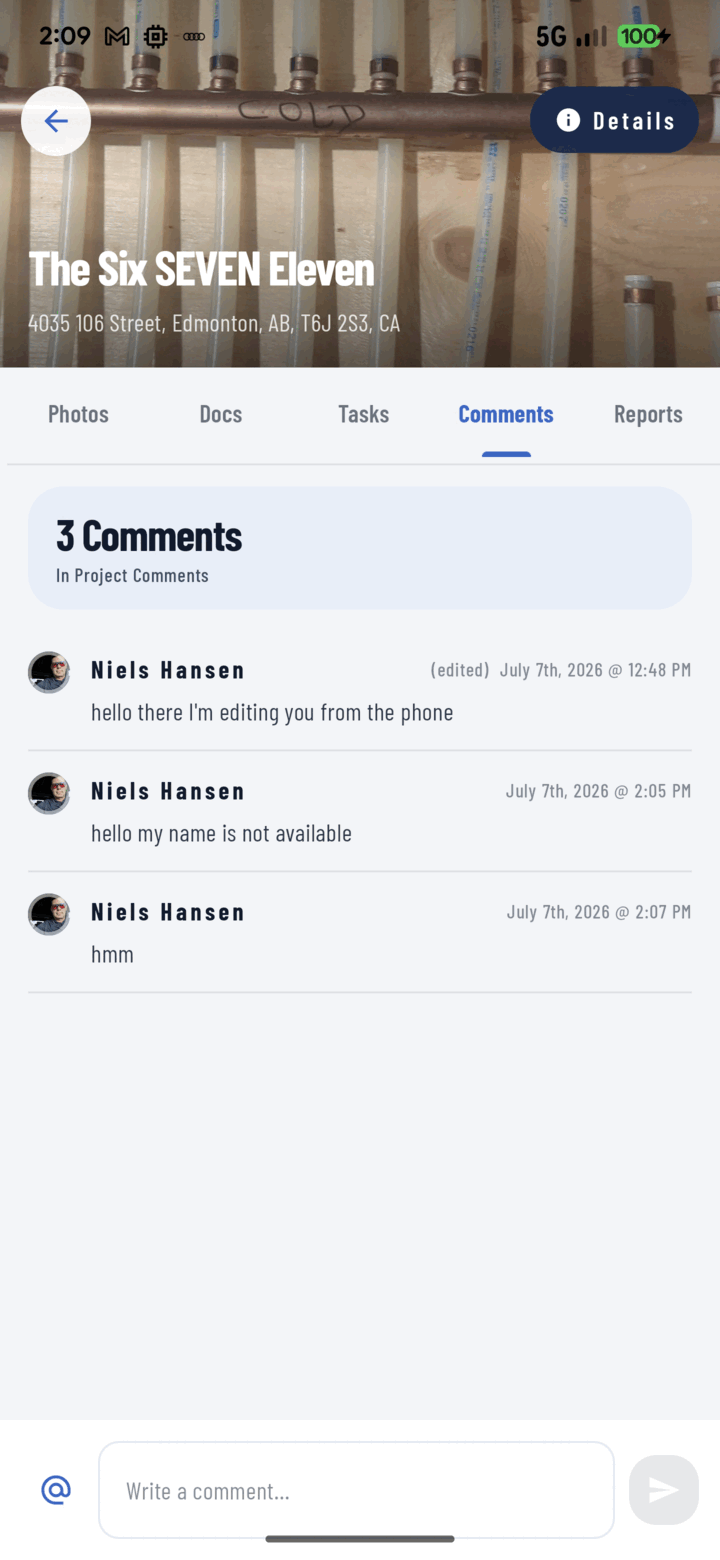
The project's Comments tab holds the discussion thread; type in the box at the bottom to add a comment.
If the comment is about what's in a photo, put it on the photo; if it's about a specific file, put it on the document — that's where people will look for it later. Rule of thumb: comment where you'd want to find the answer.
Steps
- Open the project from Home or the Projects tab.
- Swipe to the Comments tab (or set it as your default landing tab in Profile → Default Settings).
- Read the thread — it's the project's running log, newest activity loaded in pages so long histories stay fast.
- Type your comment in the input field.
- To pull in a teammate, type @ — an autocomplete list of the crew appears; tap a name to mention them.
- Send. Your comment posts with your avatar and timestamp; everyone you @mentioned gets a notification in their Mentions tab that deep-links straight to this thread.
Managing Comments
- Edit your own comment any time — it gets an "edited" label so the record stays honest. Project owners can also edit.
- Delete is limited to project owners and managers (with confirmation) — moderation stays with the people accountable for the job.
- Long-press any commenter's avatar for their person card: one-tap Call / SMS / Email.
Offline
No signal? Write the comment anyway. It queues on your device and posts automatically when connectivity returns — track it on the Upload Queue screen along with pending photos.
Tips
- New crew members catch up on a job fastest by scrolling the project Comments tab — treat it as the site log, not a chat that scrolls away.
- Recurring info (gate codes, lockbox numbers) also belongs in the project description (Details sheet) where it doesn't scroll away.
- If the comment is really a work item ("someone needs to fix the flashing"), make it a task instead — tasks have assignees, priorities, and due dates; comments don't.
Related
- Use comments and @mentions (all three areas)
- Create and assign tasks
- Work offline
- FAQ: Comments & Communication