
Open the Person Card
Long-press any avatar in the app — on a photo's uploader, a document's uploader, a commenter, a task assignee (everywhere it works). The person card opens with their name, role, and three contact buttons.
Email a Crew Member
- Long-press their avatar → person card.
- Tap the Email button.
- Your phone's mail app opens with their address already in the To: field — write and send.
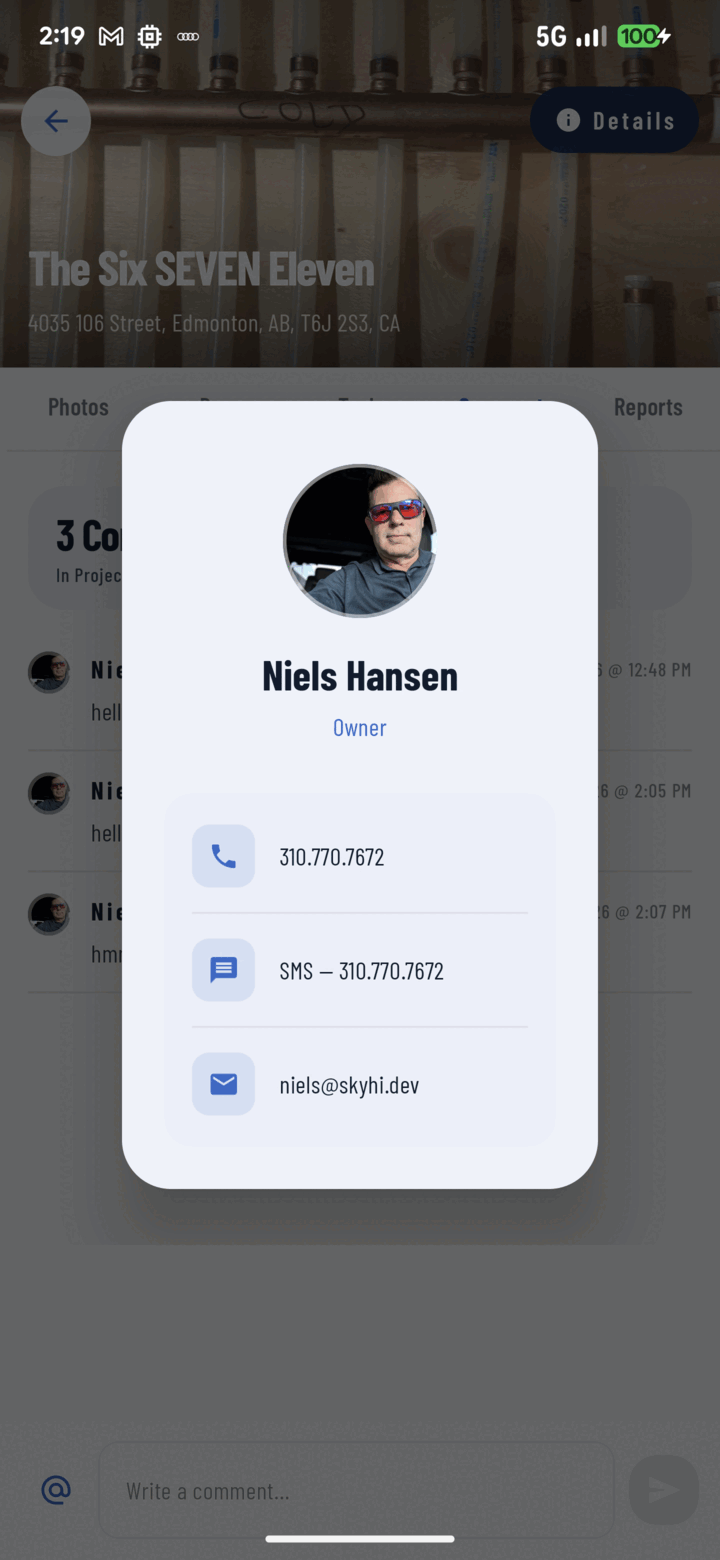
Long-press any avatar to open the person card, then tap Call, SMS, or Email to reach them.
Use it for: anything that needs a paper trail or attachments beyond the job — change confirmations, formal notices.
SMS (Text) a Crew Member
- Long-press their avatar → person card.
- Tap the SMS button.
- Your messaging app opens a thread to their number — type and send.
Use it for: the quick nudge — "gate's locked, call me", "running 20 late".
Call a Crew Member
Same card, Call button — the dialer opens with their number ready.
Use it for: anything too nuanced for text; the classic "just look at the photo I commented on and call me".
Where the Numbers Come From
Contact details come from each operator's CrewBox profile — maintained once for the company, available at every avatar. No personal contact-list maintenance, no "does anyone have the new guy's number?"
Keep the Record in Mind
Calls and texts leave no trail in the project. If the outcome matters later ("client approved the change"), drop the conclusion back into a comment or a task so the documentation stays complete.