
Creating a Task
- Tap the + FAB on the Tasks tab (or a project's Tasks tab).
- If you started outside a project, pick the project first.
- Fill in:
• Title (required) and description
• Status — To Do / In Progress / Done
• Priority — Low / Medium / High / Urgent
• Due date and an optional due time (clearable)
• Tags
• Assign crew — pick one operator (or None) - Attach evidence if useful — photos, videos, and documents (see below).
- Tap Save.
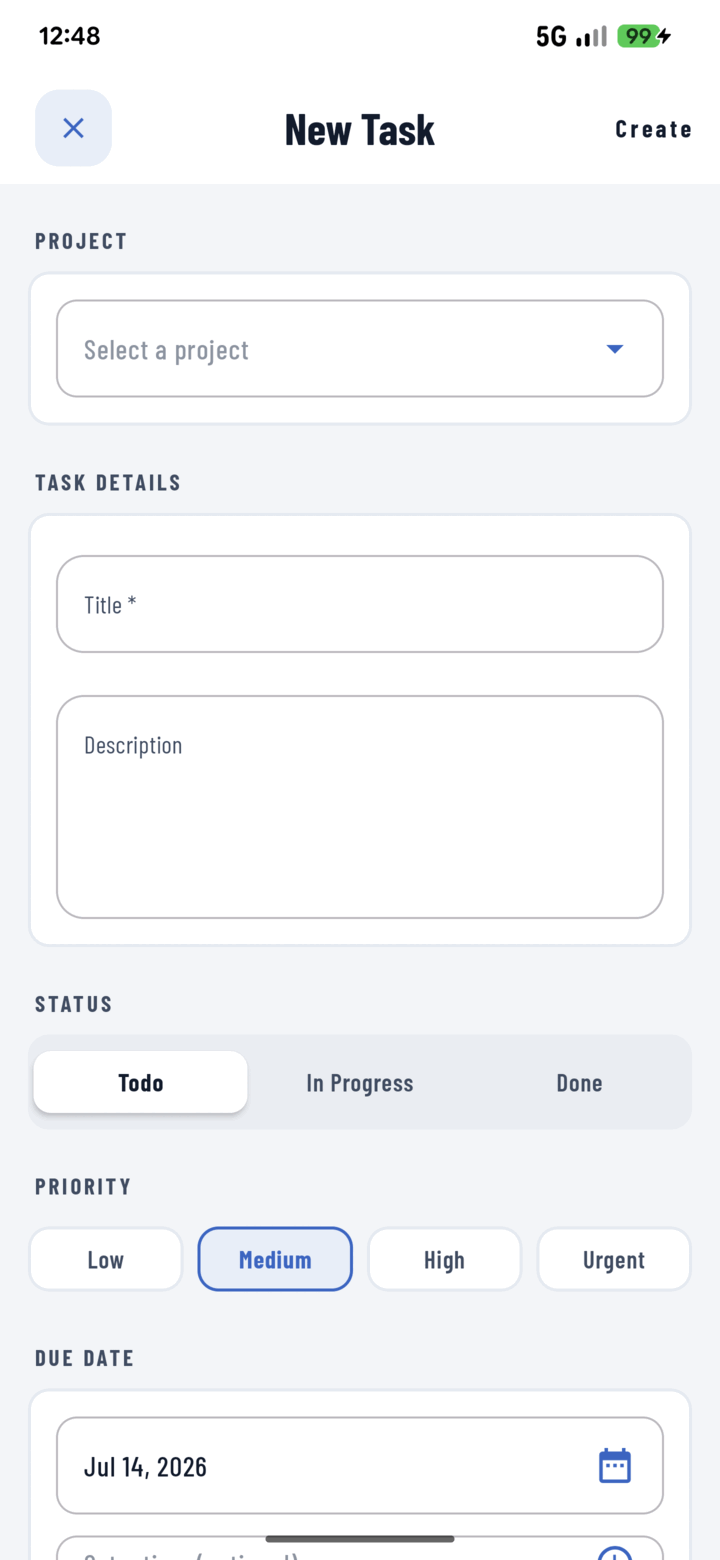
The New Task form — pick a project, fill in the details, then set priority, due date, and assignee.
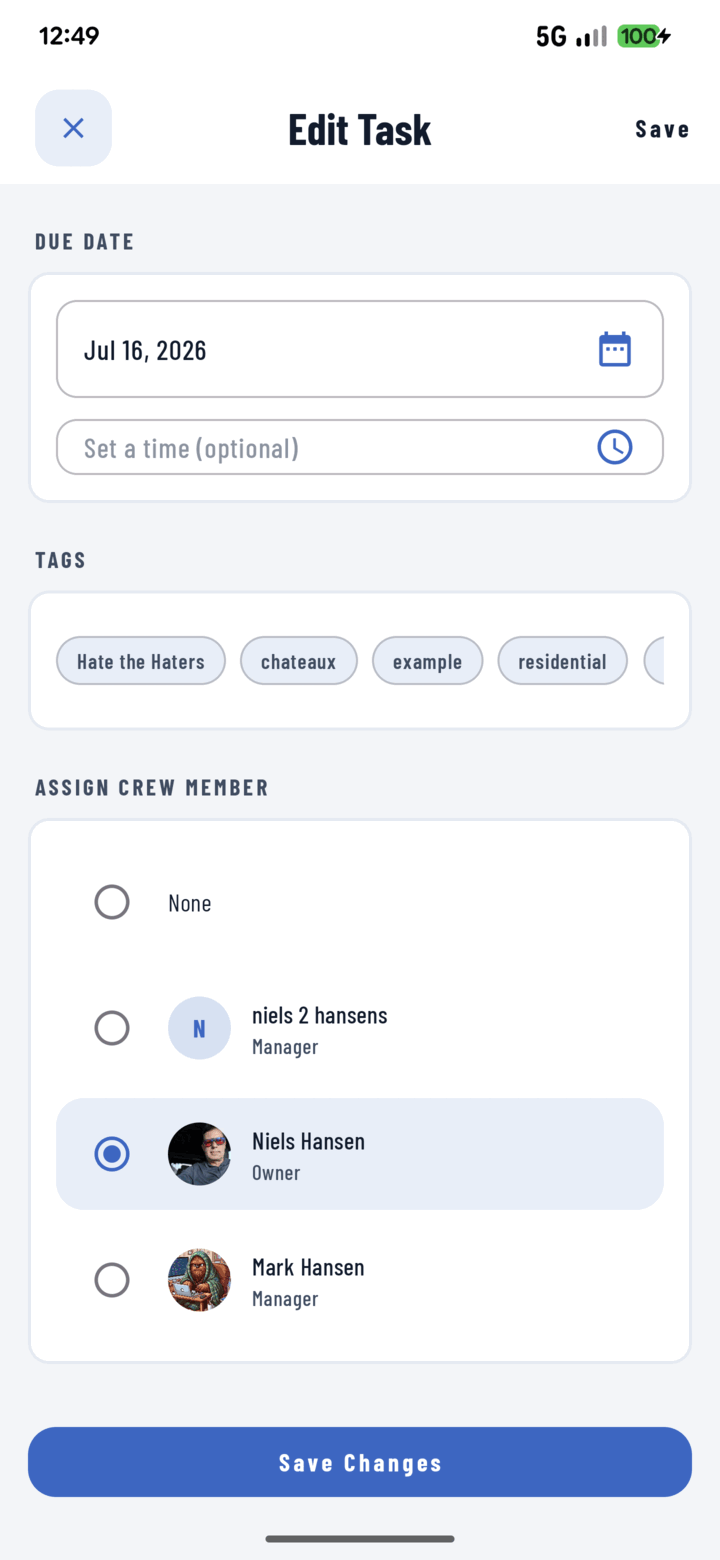
Scroll down to Assign Crew Member and tap the person who owns the task.
Creating a Task from Photos
The fastest bug-report on a job site:
- In the Photos grid, long-press and select the photos showing the issue.
- Choose Assign to Task — the task form opens with those photos already attached.
The same works from the Documents tab.
Save Time with Defaults
In Profile → Default Settings, set your usual status, priority, due date (Today / Tomorrow / One Week), and Assign to me — every new task pre-fills them.
Tracking
- Task cards show a checkbox — tick to mark done from the list.
- Task detail shows a live countdown ("Due today", "Overdue"), attachments, linked documents, and the assignee.
- The Tasks tab's progress card summarizes overdue / today / upcoming / completed.
- Assignees are notified in their Assignment notifications tab.
Related
- Bulk-edit tasks
- FAQ: Tasks