
Reassign One Task
- Open the task and tap Edit.
- In the Assign crew section, pick the new crew member (or None to unassign).
- Save.
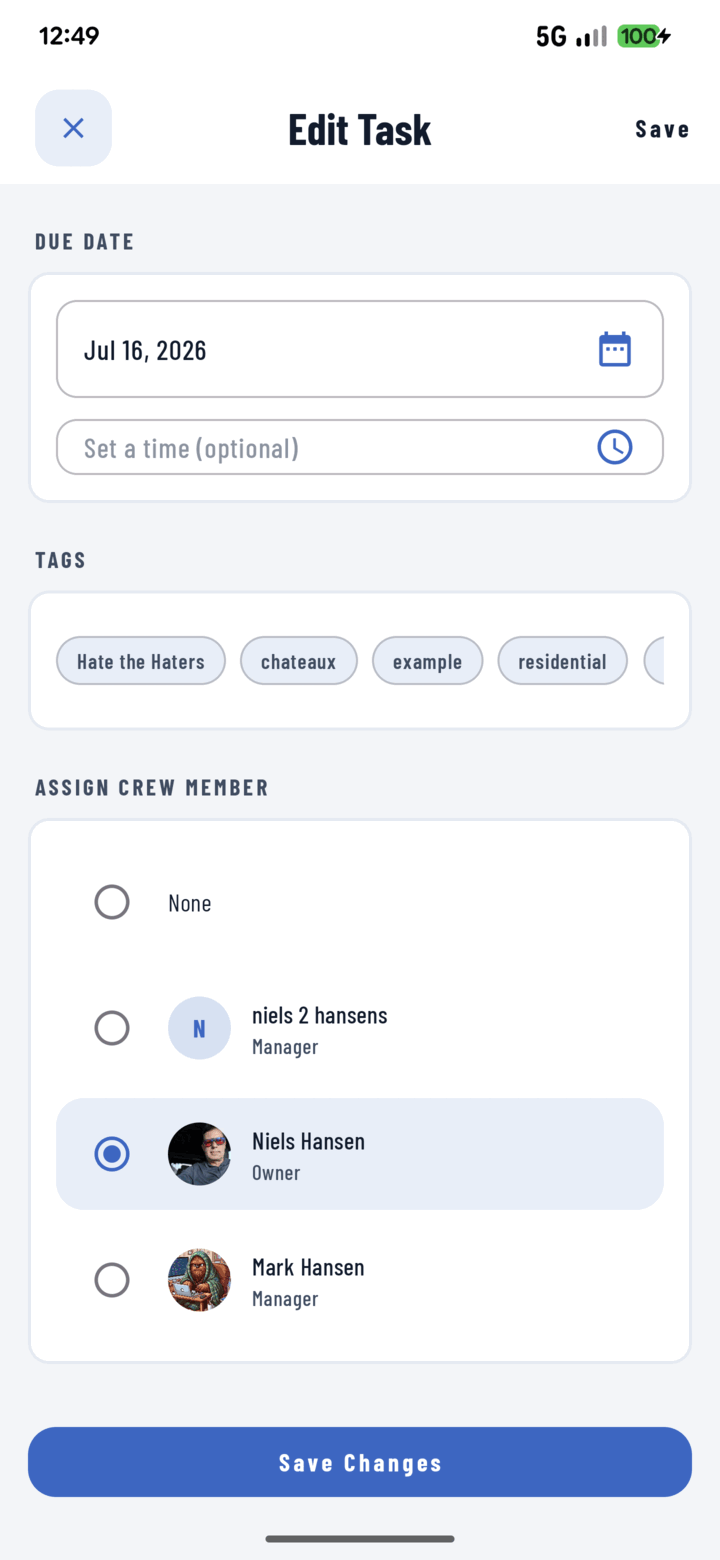
Open the task, edit it, and tap a different person under Assign Crew Member to reassign it.
Reassign Many at Once
The Monday-morning move:
- In any task list, long-press a task to enter selection mode.
- Select every task changing hands (filter first — e.g. group by Assignee — to see one person's load).
- Actions sheet → Assign → pick the new crew member.
- All selected tasks reassign in one operation.
What the Crew Members See
- The new assignee gets an Assignment notification deep-linking to the task — with the attached photos showing exactly what the work is.
- The task appears in their Assigned to Me list and Home's My Tasks buckets immediately.
- The previous assignee's list drops it.
Tips
- Only operators assigned to the project appear in the assignee picker — add them to the project first (guide).
- Rebalancing a whole week? Group by Assignee in the filter dialog to see each person's pile before you move anything (filtering guide).