
Opening a Task
Tap any task card in:
- The Tasks tab (your personal list, or All Tasks)
- A project's Tasks tab
- The My Tasks section on Home
- An Assignment notification
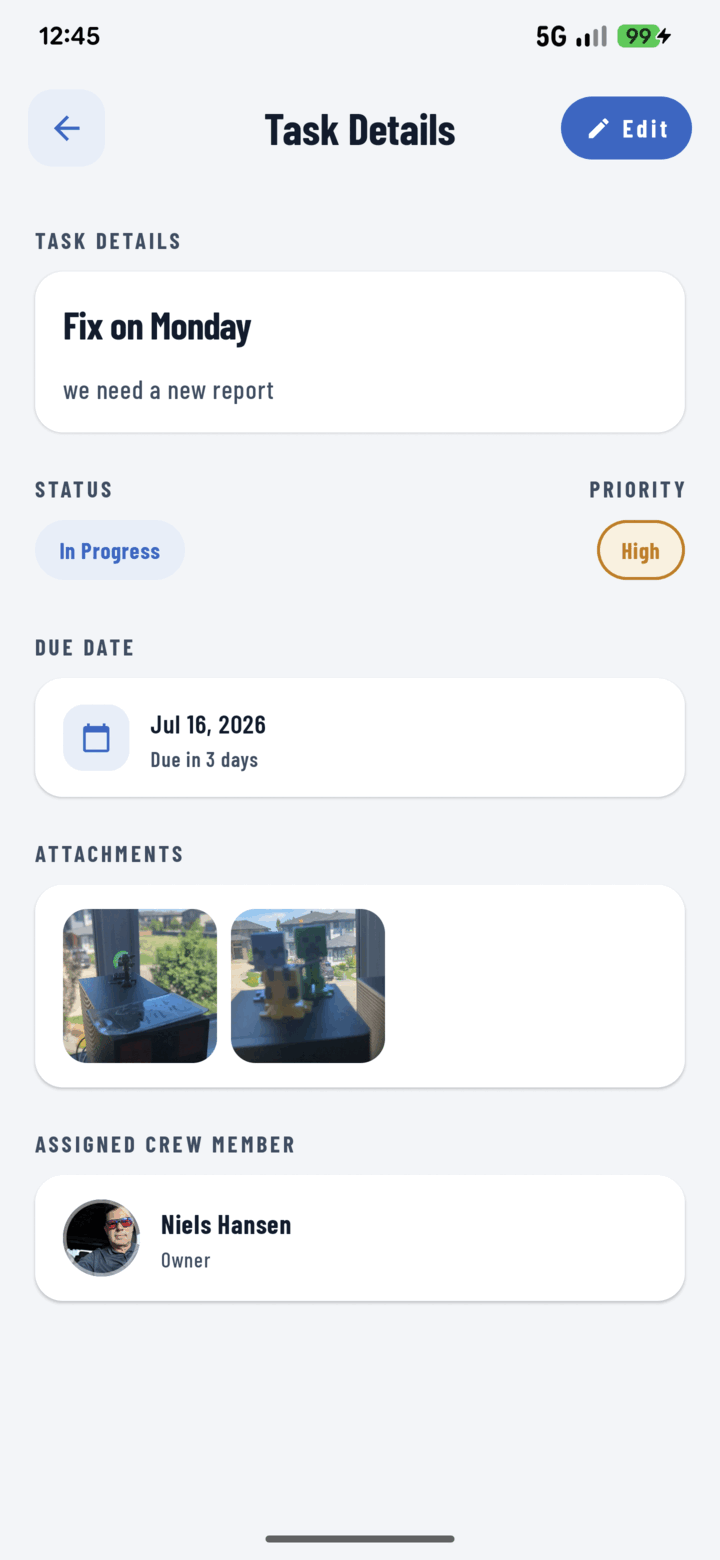
The Task Details screen gathers status, priority, due date, attachments, and crew in one place.
What You See
| Element | What it tells you |
|---|---|
| Title & description | The work itself |
| Status chip | To Do / In Progress / Done |
| Priority chip | Low / Medium / High / Urgent, color-badged |
| Due date + countdown | The math is done for you: "Due today", "Overdue" |
| Photo/video attachments | Tap any to open the full media viewer (videos badged) — see exactly what the problem looks like |
| Linked documents | Tap to open the relevant plan or spec in the document viewer |
| Tags | How the task is categorized |
| Assignee | Who owns it — long-press the avatar for their person card (call / SMS / email) |
From Viewing to Acting
- Edit button (top) → change anything (guide)
- Done with it? Back in the list, tick the task's checkbox (guide)
- The detail refreshes automatically when you return from editing.