
Steps
- Open the task (viewing guide) and tap Edit.
- The form opens pre-filled. Change what you need:
• Title and description
• Status — To Do / In Progress / Done (segmented control)
• Priority — Low / Medium / High / Urgent chips
• Due date and optional due time — both clearable (due-date guide)
• Tags — multi-select
• Assignee — pick a crew member or None (reassignment guide)
• Attachments — photos/videos and documents: tap to view, or unlink (with confirmation; the media stays in the project library) - Tap Save (top bar or bottom button). The task detail refreshes with your changes.
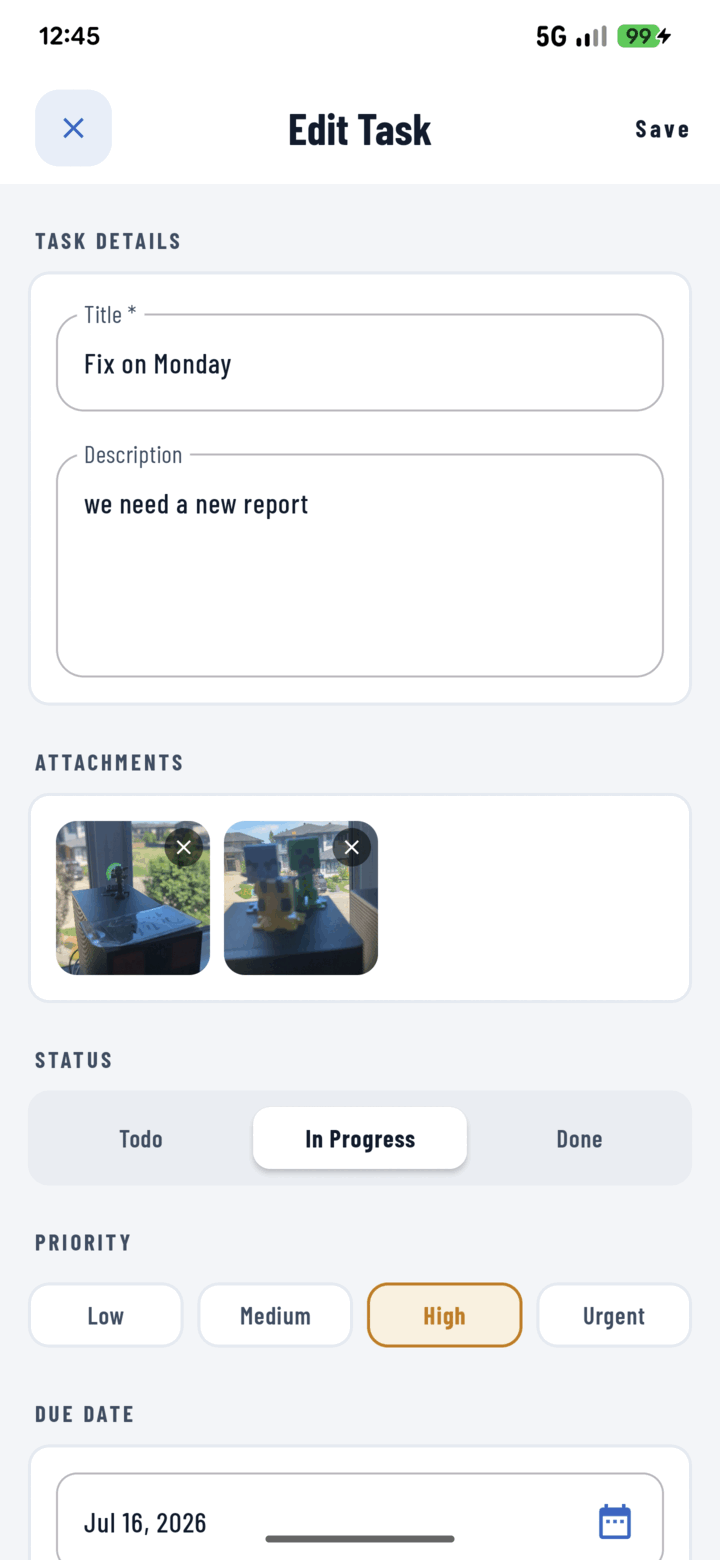
The Edit Task screen — change the title, description, attachments, status, priority, or due date, then Save.
Quick Alternatives (no form needed)
- Just marking it done? Tick the checkbox on the task card in any list.
- Changing several tasks the same way? Long-press → multi-select → bulk actions (guide) — assign, status, priority, or tags across the whole selection.
Can I Delete a Task?
CrewBox doesn't delete tasks — the work record stays intact. Close a task out by setting its status to Done; filter it out of view with the status filter.