
Steps
- Create or edit a task.
- Tap the due date field — pick the date in the calendar picker.
- Optionally tap the time field for a deadline hour ("before the 2 PM inspection") — the time is clearable if plans loosen.
- Save.
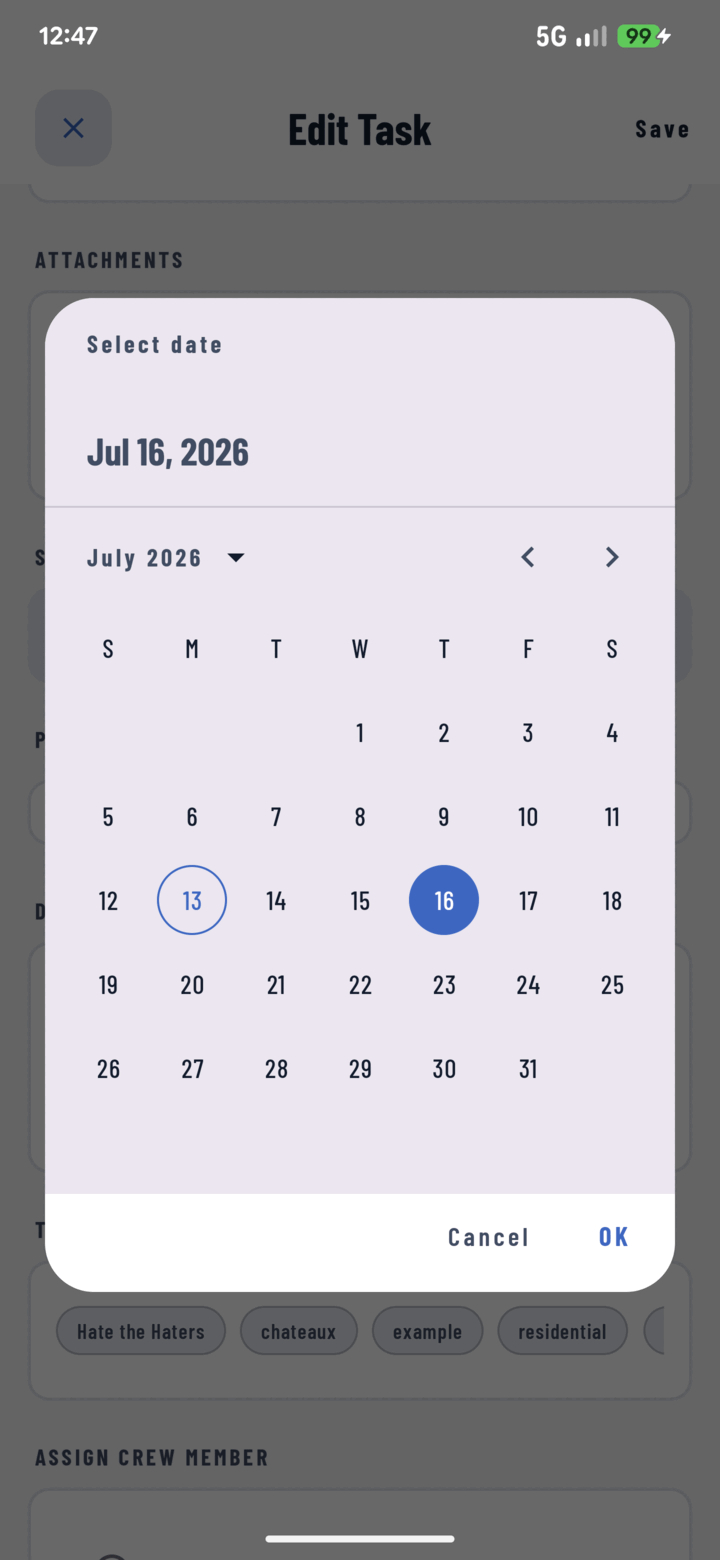
Tap the calendar icon on the Due Date field to pick a date; add an optional time below it.
What the Due Date Powers
- Countdown on the task detail: "Due today", "Overdue" — no date math.
- Home's My Tasks buckets: past due / today / tomorrow / next week.
- The progress bar: overdue and due-today segments on the Tasks tab.
- Date grouping: the default list view organizes by these dates.
Set It Once in Defaults
Profile → Default Settings → New-task defaults includes a due-date preference — None / Today / Tomorrow / One Week. Punch-list crews set "Today"; planning-ahead PMs set "One Week". Every new task pre-fills it; override per task as needed (defaults guide).
No Due Date?
Leave it empty for backlog items — they stay out of the urgency buckets until scheduled.