
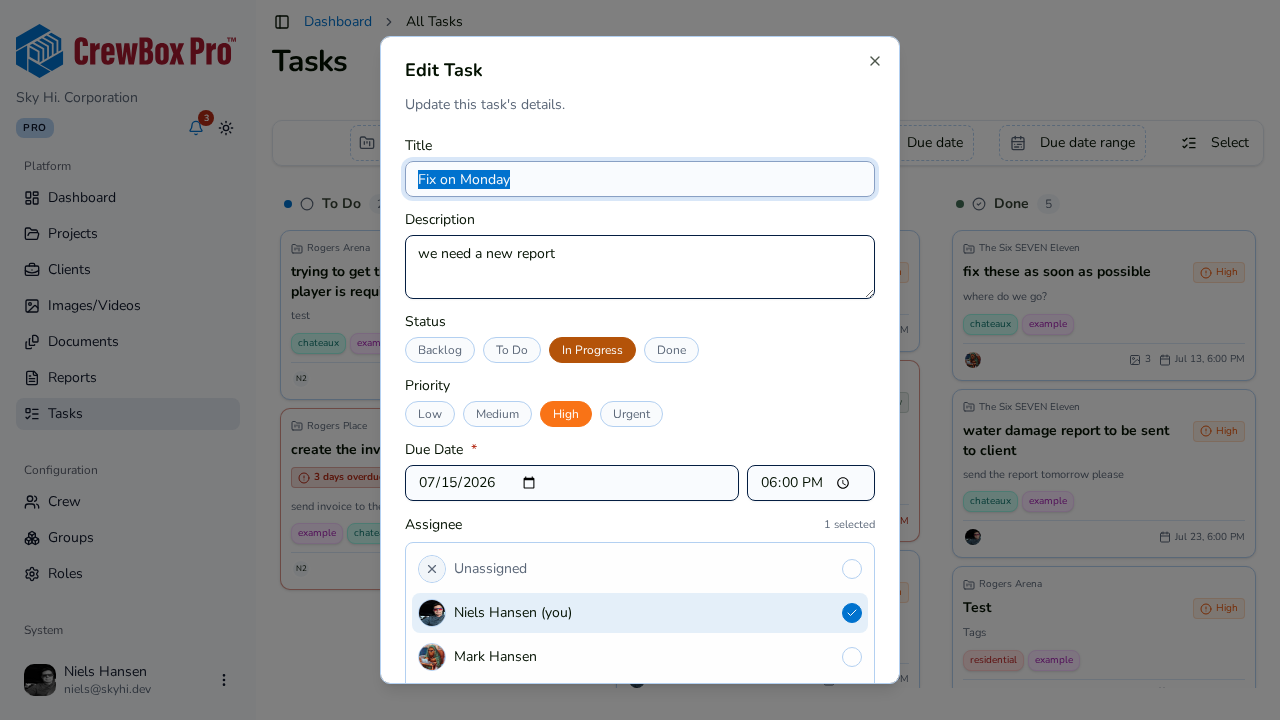
Set the due date and time
- Open the task in the task editor dialog (click its card, or set the date while creating it).
- Set the due date and time — both are required; the board and deadline views depend on them.
- Save.
How overdue tasks announce themselves
Once a due date passes, the board makes it hard to miss:
- A red "N days overdue" badge appears on the card.
- The card gets a red border.
- The card's due date/time turns red.
- The dashboard's Task Health widget shows a red "N overdue" pill when overdue tasks exist.
Filter by deadline
Both the project board and the global Tasks page offer due-date filters:
- Due-date preset — Any / Past due / Due today / Due this week / Due this month.
- Due-date range — a custom window.
Watch deadlines from the dashboard
The dashboard's Upcoming Deadlines widget lists tasks due within the selected period, each with a due-date pill ("Today", "Tomorrow", or the date — red when due today), a priority pill, and assignee avatars. Clicking a deadline opens the task in the edit dialog right on the dashboard.
The project sidebar also keeps an Upcoming & Overdue tasks accordion — the top five, overdue first.