
Create a task with assets pre-attached
Tasks created from photos, documents, or plan markers arrive with those assets already attached:
- From a photo — click Create Task in the photo viewer's quick actions; the photo is pre-attached.
- From a photo selection — in Select mode, choose photos and click Create New Task (pre-attached) or Assign to Task to add them to an existing task.
- From a document — click Create Task from Document in the document viewer sidebar, or Create a Task in the document card's menu.
- From a document selection — Select mode offers Assign to Task and Create New Task (documents pre-attached; the selection must be within one project).
- From a plan marker — click Create Task for Marker on the marker's hover card; the task is pre-named and linked to that location.
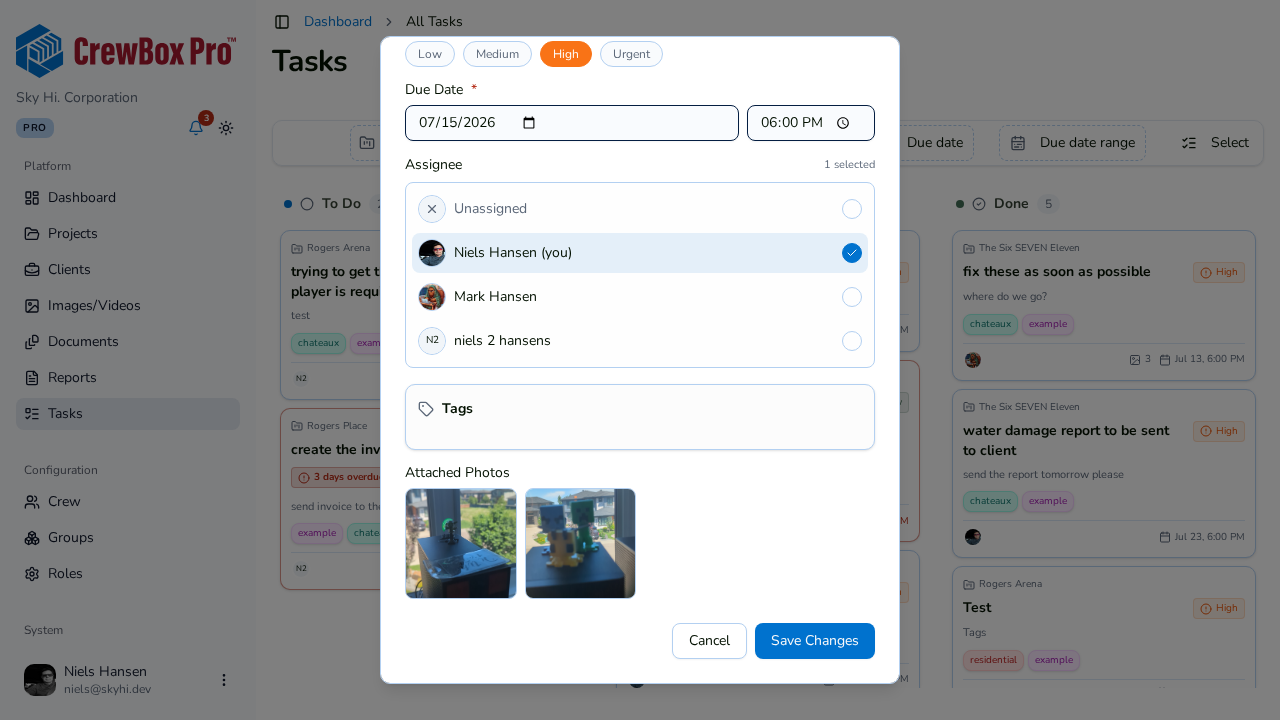
See attachments on the task
- The task card on the Kanban board shows attached photo and document counts.
- In the task editor dialog, attached photos appear as a thumbnail grid — click one to open the photo viewer. Attached documents are listed with links into the document viewer.
Remove an attachment
In the task dialog's edit mode, each attachment can be unlinked. A confirmation clarifies that the photo or document itself isn't deleted — only its link to the task.