
Open the task dialog
From a project, click Create Task in the Tasks tab toolbar or Add a Task in the project sidebar's Quick Actions. (If the project has no tasks yet, a Create First Task empty state gets you started.)
The same dialog serves every place a task can be made: the project tab, the global board, dashboard deadlines, the photo viewer, the document viewer, and bulk actions.
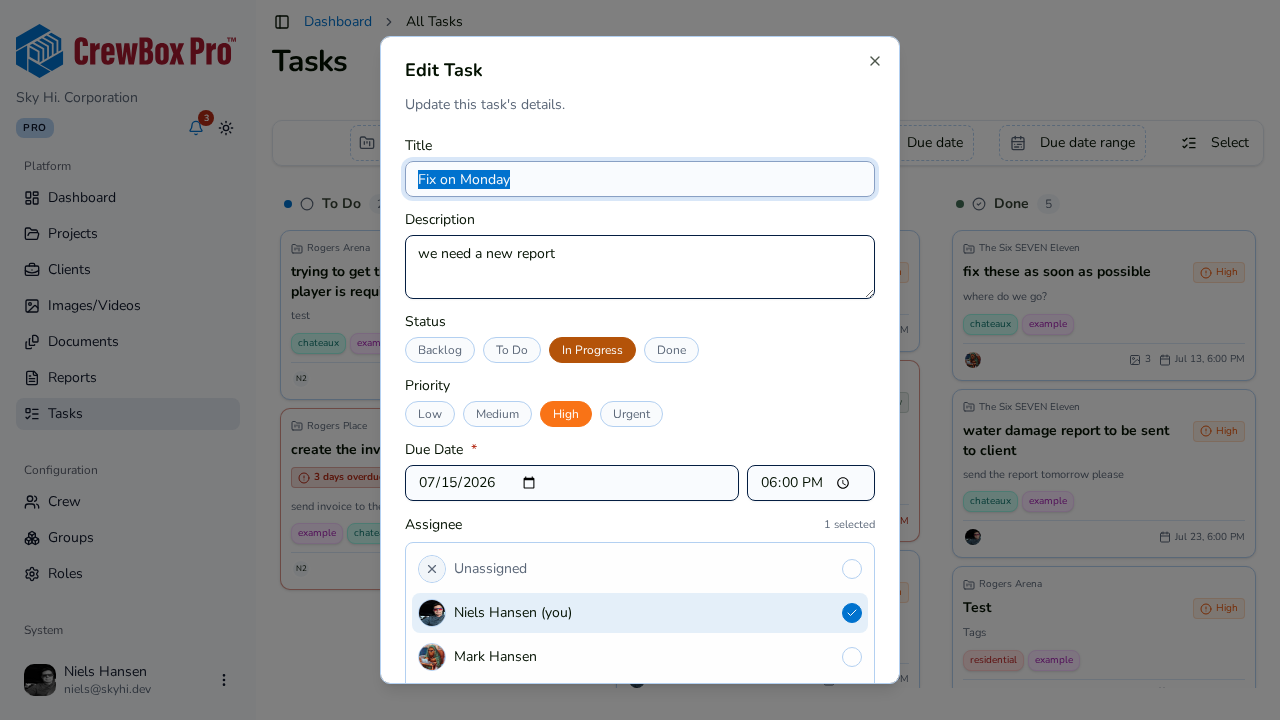
Fill in the task
- Title — required. Add a description if the title needs backup.
- Status — pick a pill: Backlog / To Do / In Progress / Done.
- Priority — pick a pill: Low / Medium / High / Urgent.
- Due date and time — required; the board and deadline views depend on it.
- Assignee — a single-assignee picker listing the project crew first, then all operators, plus "Unassigned". You appear as "(you)".
- Tags — apply through the tag selector and tag manager.
- Save. The card appears in the matching Kanban column.
Attachments
Tasks created from photos, documents, or plan markers arrive with those assets pre-attached:
- Attached photos show as a thumbnail grid; each opens the photo viewer.
- Attached documents are listed with links into the document viewer.
- In edit mode, each attachment can be unlinked — a confirmation clarifies the asset itself isn't deleted.