
Steps
1. Select the photos
On the Photos tab, click Select, then check the photos (and videos) that document the issue.
2. Decide: existing task or new task?
The Actions menu offers two routes:
- Assign to Task — link the selection to a task that already exists
- Create New Task — start a brand-new task with the media already attached
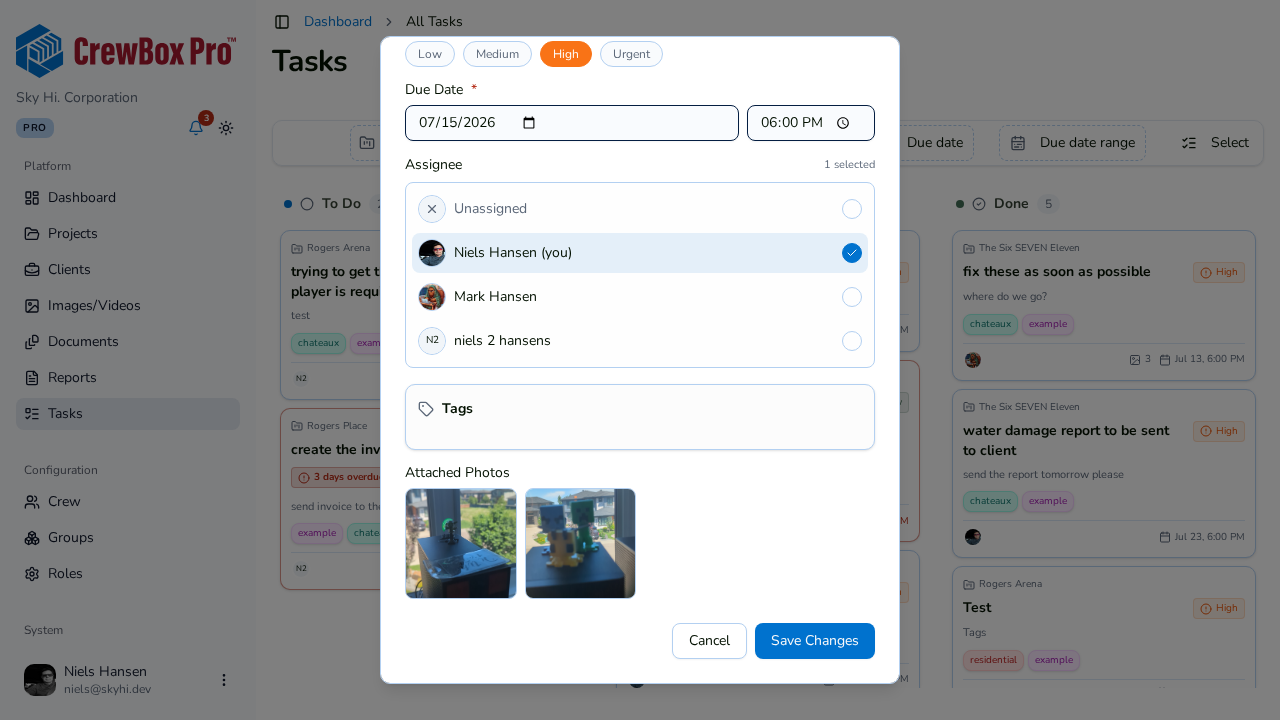
3a. Assign to an existing task
Choose Assign to Task, pick the task, and confirm. The selection is linked to it.
3b. Or create a new task
Choose Create New Task. The task creation dialog opens with your selected media pre-attached — just fill in the title, assignee, and details.
4. Verify from the photo
Open any of the photos in the viewer — its Linked Tasks accordion now lists the task, and clicking it opens the task editor.
Tips
- From a single photo, the viewer's Create Task quick action does the same thing for one photo — it opens task creation with that photo pre-attached.