
Enter selection mode
- On any Kanban board (project Tasks tab or global Tasks page), click the Select toggle.
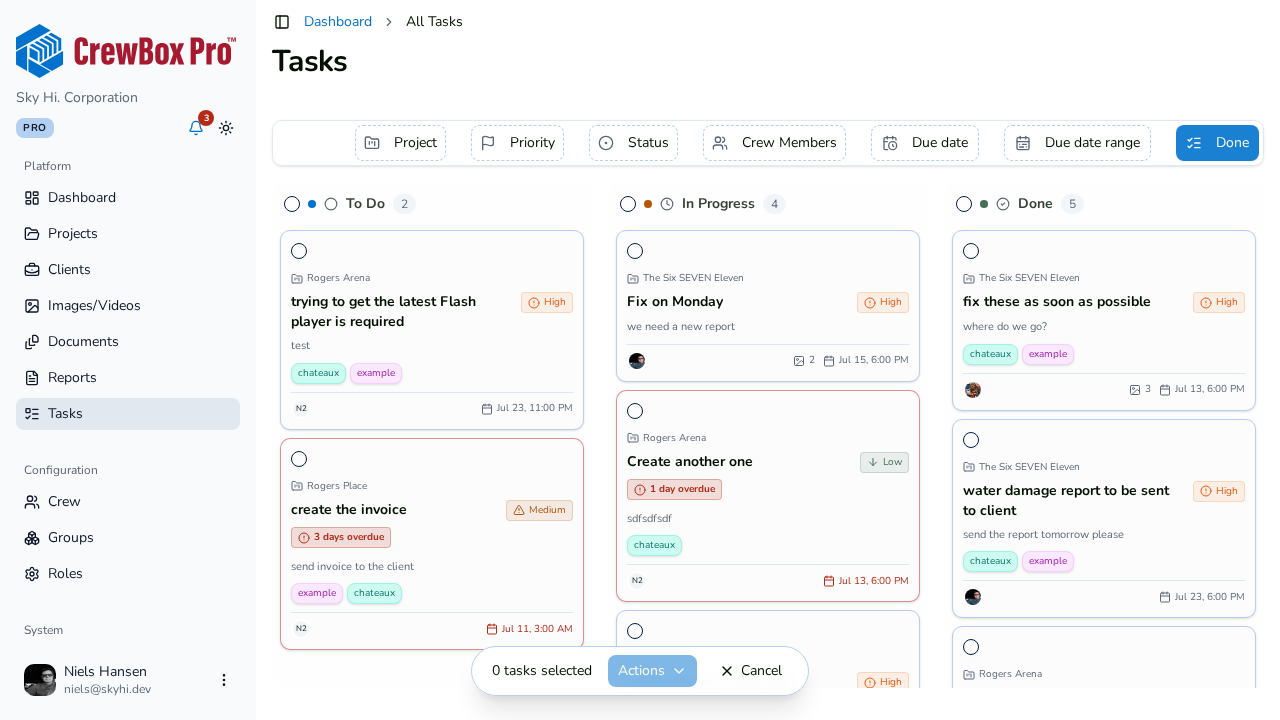
- Checkboxes appear on the task cards. Click cards to select them.
- To grab everything in a column, use the select-all per column checkbox.
Tip: filter first (by crew member, priority, or due date), then select — the selection only touches what's on the filtered board.
Apply a bulk action
With tasks selected, the bulk actions are:
- Assign Task(s) — hand the whole selection to one crew member.
- Change Priority — Low / Medium / High / Urgent.
- Change Status — To Do / In Progress / Done.
- Tags — apply tags across the selection.
Each action applies to every selected task in one operation, then reports success and refreshes the board.
Common plays
- Monday dispatch: select-all in To Do, Assign Task(s) to the crew lead running that job.
- Escalation: filter Past due, select all, Change Priority to Urgent.
- Cleanup: select stale In Progress cards and Change Status to Done after a walkthrough.